
?????

I just received my Pinebook Pro.
It's a laptop that costs 200 USD to purchase. It's manufactured by an organisation, PINE64, who want to deliver community-driven stuff. They make laptops, stationary computers, a phone, and a wristwatch, which are all—except for the watch—running Linux. Or, actually, any operating system that handles the processor architecture: you're free to choose whatever you'd like to use.
PINE64 have a philosophy stated, a highly-transparent wiki, a very helpful community, and loads of partnerships with other organisations and companies that create exciting stuff. They're also very transparent with issues that their products have and provide actual resolutions (do you hear me, Apple, et al?). I'll get back to that last bit later.
Every bit of hardware is documented and made with tinkerers in mind. You want to swap the memory for something else? Just order it from them. You want to open the device and replace something? There's documentation for it, so go right ahead. Install which ARM-compatible operating system you like. Nothing is bloated with malware. Nothing is spying on you. You can contribute to most of the software that you'd like to install.

Every little thing is open. You get to see what's inside. You can take out things, replace them with stuff that you prefer, even. This cannot be said for most other manufacturers.
To me, running Linux is a bit like listening to this video when you're at your most stressed.
The processor architecture is ARM, which means that it is different from what Intel delivers. This blog post contains extensive information on the subject, but let's just say I don't like the idea of there being backdoors into Intel's stuff. By the way, Apple are moving from Intel to building their own Arm-based processors.
Did I encounter issues? Yes, I did. I'll get to that in a bit, but I'm going to convey what happened when I installed my operating system in steps.
Pinebook Pro now comes pre-loaded with Manjaro and KDE Plasma as my desktop environment. This distribution—a Linux term that means a Linux flavour, much like different kinds of ice-cream—is very user friendly. I've been pleasantly surprised with everything in Manjaro so far, and please bear in mind that I'm mainly coming from a Windows and macOS background.
First impressions

The first thing I noticed when I received the laptop is that it's lighter than I expected it to be. I've used a bunch of different laptops, everything from heavy 1980s IBM machines to my current work laptop, a 13-inch, 2018-year-edition Apple MacBook Pro.
The second thing is that the machine is unscathed by branding. The only thing that reveals that this machine is made by PINE64 is an identifying sticker underneath the computer and a keyboard key that carries the emblem of a pine cone.
The third thing I noticed was how sleek the introductory phase was. I turned on the computer and there's, first of all, no noise; the laptop is fanless.
The screen is big. To me, it feels far more well made than many laptops that I've seen. Sure, technology is advancing, but this is 1920*1080 resolution and altogether, for 200 USD, this is brilliant value for money (in a capitalistic society).
The Manjaro installation process is very simple and shows how things evolve in the PINE64 universe; Blog posts that are written in January 2020 about the setup process can be outdated. An example of this is that I didn't need to change root user name/password as the installation process takes care of this.
Finally, the battery lasts a long time. People state it lasts for 6-8 hours (depending on how it's used). I've yet to complain.
The battery life wasn't as amazing as I hoped, but it wasn't bad, either—the battery discharged 18 percent over the course of an hour of full-screen YouTube at 1080p. This isn't quite as good as the vastly more expensive HP Dragonfly Elite's 16-percent discharge, but it's far better than the (also vastly more expensive) Dell XPS 13 Developer Edition's 24-percent discharge in the same time frame. It's unclear what impact—negative or positive—this unit's deranged LCD display may have had on the test.
Finally, the onboard 64GiB eMMC storage seems solid. I did the usual battery of fio testing on it, and it brings an average 1MiB write throughput just under 90MiB/sec, 4KiB sync write throughput of 2.1MiB/sec, and average 4KiB write latency of 0.1ms, with 99.99th percentile write latency of 2.4ms. It won't win any races with mid- to high-end "real" SSDs, but it's a solid performer unlikely to frustrate anyone for desktop use cases.
https://arstechnica.com/gadgets/2020/06/pinebook-pro-review-a-200-foss-to-the-hilt-magnesium-chassis-laptop/
With my smartphone having more processing power and memory than this laptop, it is no wonder that it’s pretty green and efficient. It uses eMMC for storage which uses something like 0.5 watts. You can upgrade to NVMe SSD storage but NVMe uses a bit more power. With the low CPU clock speed, I’m curious if NVMe would make much of a difference. My thought is, probably not. Let me know if you benchmark this. Battery life is great, I’m getting about 8 to 10 hours 6 to 8 hours.https://haydenjames.io/pinebook-pro-my-first-impressions-and-setup-tips/
First small tweaks
The Manjaro team have a few good-to-know things directed at Pinebook Pro owners listed here.
I read this lovely review-and-tips blog post (even though the poster is on Debian and not Manjaro) and did this:
Installing software
Manjaro Linux is based on Arch Linux. It's not unfair to say Arch has been a distribution for people who know their way around a Linux shell and know their way around Linux. Manjaro is different.
One of the main things about Manjaro is that it supports a lot of hardware out-of-the-box. I didn't have to search for, install, or configure drivers for a wireless mouse; I just jacked a receiver into a USB port and it worked. The same for connecting my headphones via Bluetooth. No issues.
One thing that I recommend is to enable the Arch User Repository (AUR) in Manjaro. It's simple and gives you access to a lot of software apart from the regular and official Arch repositories.
Other ways to install software in Manjaro on ARM include Snap and Flatpak, the former of which is controversial, to say the least; it also allows installations to balloon far beyond their initial size.
Running other operating systems from an SD card
Pinebook Pro supports this from the start: I didn't have to configure anything to enable this functionality.
When ordering the laptop I also ordered a 64 GB SD memory. It set me back 20 USD. The laptop allows for running different ARM-compatible operating systems from the SD card, straight off the bat. That's extremely nice and good-to-have! You can download and install any ARM-compatible operating system you want, but I've gone for some Pinebook Pro-compatible ones as I'm really not a Linux tinkerer; PINE64 maintain a radiant list of operating systems here.
To flash an image, I use balenaEtcher, free software that just works. The graphical user interface is simple and very easy to use.
I didn't even have to download an image to flash to the SD card, but I merely entered out the URL to the image; balenaEtcher took care of that in no time. When it was done, I just popped the SD card into the reader in the laptop, hit the power button, and the operating system started up nicely. You can even install Chrome, the operating system that Google use for their Chromebooks.
Edit, 2020-07-21: I've noted a tendency where Pinebook Pro boots to the SD card about 30% of the time and written about it in the Pine64 forum.
Sync
I love sync software. I mean, software that allows you to replicate stuff between different machines, preferably regardless of operating system.
My favourite sync software has since long been Resilio Sync. I've paid for a license, and I use it all the time between macOS and Android machines, from laptop to stationary, mobile, and tablet.
My love for Resilio will endure, but it's been dragged through the mud because of how they handle Linux. Let me explain:
I installed Resilio Sync as it was available via AUR. Hell yes! That's where my problems started. Resilio's Linux guide is, to put things mildly, not good. I installed, read that, then reverted to the radiant Manjaro Forums, where I found this article. Sadly, the article isn't really up-to-speed and having fiddled around with it for a short while, I just decided against Resilio Sync on my Pinebook Pro and went elsewhere.
Syncthing saved me.
It's open, cross-platform, encrypted, and there's no man-in-the-middle. The documentation is well made. I installed syncthing and syncthing-gtk; the former is the binary package and the latter is the graphical user interface.
Arch maintain this very sweetly written wiki article on Syncthing,
There's a nice matrix of backup and sync software at Arch Wiki.
I've not yet managed to configure my system so that it allows the Syncthing updater to start, but I know it's because I've not found out how to add proper rights yet. It'll happen.
Obsidian (or, rather, not)
I've recently fallen in love with Obsidian and have written extensively about it here.
Before starting up the Pinebook Pro for the first time, I installed VirtualBox and used it to run Manjaro virtually. I then installed Obsidian without any problems, using the Snap package. Easy, peasy.
It wasn't possible on the Pinebook Pro, I tell you what.
The reason why that is is that I'd not emulated an ARM processor on my VirtualBox. There you go. I've even checked with Obsidian developers. One day they might release an ARM-compatible Obsidian, but not in the near future.
A possible workaround would be to install Wine and see if it's possible to emulate Obsidian running under Windows; Obsidian is not listed in their database, but the day may just come...
Having said this, Zettlr is available for Arch, but not for the aarch64 architecture. In other words: no Zettlr for Pinebook Pro.
Having said that, I went for a workaround:
- Install Syncthing and have your Obsidian vaults sync around to everywhere you want to access your stuff.
- Install a Markdown editor to edit your stuff (and see the section below for details on these software)
- Linux: Remarkable or Kate
- Android: Markor (as I'm unable to save files using iA Writer)
Markdown editor
I've recently—since Obsidian, actually—really discovered the many boons of writing in Markdown.
So, one boon of using Syncthing and not being able to use Obsidian, is that I can use a Markdown editor to write, as that's most of what I do.
Naturally, there are quite a few Markdown editors to choose from. Unfortunately, Typora is not made for the ARM architecture; still, it's not obligatory nor unique, and will cost money after it exits its beta phase.
Having said that, I'm very happy with what I've found.
Ghostwriter

Ghostwriter with dark theme.
Edit, 2020-07-21: I wish I'd found Ghostwriter first.
It's a simple little application that allows you to write in a distraction-free environment. Everything I need, including customisable theming.
It's also got Hemingway mode that can be enabled, which only lets you write and not edit; In other words, when enabled, you can't delete or change anything you've written.
Ghostwriter is available via the official Arch repository.
Remarkable
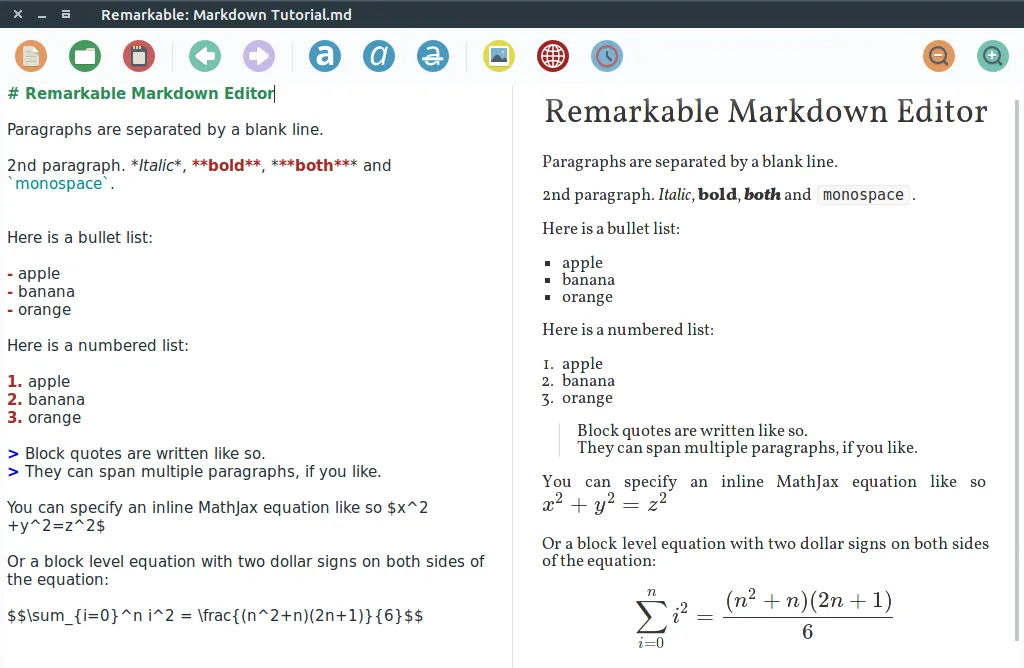
Remarkable in Gnome.
As stated previously, Remarkable does a great job with displaying vertically-split windows so that you can see what you're editing on one side and a preview of Markdown on the other. Supports themes and 'night mode'.
Kate

Kate is part of KDE, and hence pre-installed with Pinebook Pro and Manjaro.
This is a multi-document editor and is highly customisable.
With a multi-view editor like Kate you get a lot of advantages. You can view several instances of the same document and all instances are synchronized. Or you can view more files at the same time for easy reference or simultaneous editing.
There are a lot of features in Kate, among them, plugins, syntax highlighting, scripting support, and an embedded Terminal.
Viewing: Okular or Evince
For viewing files, there are a couple of nice apps that I've stumbled across. Let's say that I've not looked around for great apps to view and annotate documents so far, but considering what's available on Windows, these two are brilliant.

Okular on Gnome
Okular is included with KDE.
It's cross-platform and handles a lot of different formats.
I like opening Markdown files in this app and having them exported to HTML, PDF, or OpenDocument text (which one can open in Microsoft Word, among many other word processors).

Shell

Terminator
I've installed Terminator and not looked back. It's part of the official Arch repository. It allows you to right-select a shell and select 'split horizontal' or 'split vertical', and you can have as many shells running as you want.
Process viewer

htop
In Windows, this is named Task Manager. In macOS, it's Activity Monitor.
I've installed htop, an interactive process viewer that's highly customisable. It allows you to select headings to sort the results differently.
htop is available in the official Arch repository.
This post conveys some brilliant tips on what to hide from htop.
Other network-monitoring apps
I'm just going to quote the following from this brilliant post:
I found those two tools very useful:
- bmon monitors the bandwidth over time
- nethogs tracks the network usage of every program
You can install them with pacman.
https://louisabraham.github.io/articles/pinebook-pro-setup.html
KDE Connect
When I first posted this review I forgot something: KDE Connect! How could I when I'm in love with it?
I mainly use KDE Connect to respond to events in my mobile phone.
You can enable bidirectional copy/paste to have what you copy on your computer delivered to your phone. Transfer files. Check where your phone is. See its battery level. Respond to text messages. Download podcast episodes to your phone. Use KDE Connect as a remote control for your
It's extensible as hell. You can even enter commands to your computer (e.g. power it off) and control slideshows.
Netflix
You won't be able to watch stuff from Netflix or Amazon without this (unless you apply another custom solution).
This PINE64-forum post solved everything for me.
One has to install Docker and then Chromium with Widevine installed. Then, run Chromium, add the custom Netflix extension, and configure it to always display video in the highest-available format (and to use 5.1 sound if you want to and can).
I've only tried Netflix on it, but it runs like a charm.
Using video via USB-C
I was keen to try this out and really wondered whether it'd work! I plugged in a third-party USB-C cable that I use for my MacBook Pro, inserted the USB-C end into the Pinebook Pro...and nothing. I pulled up the Display settings in Manjaro, and no additional display was detected.
Hang on.
I unplugged the USB-C cable from the laptop, turned it upside-down, and inserted it.
Presto.
A pristine extended image was displayed on my TV and Manjaro told me I had another display available.
Manjaro surprised me by offering so many display settings. Lovely.
Now, this could be me, but I don't think one is able to send audio via USB-C on the Pinebook Pro. I'd have loved that, but still, I'm happy with what I get. There's an audio port on the Pinebook Pro so I'll use that.
Performance tricks
Swapping
Before receiving my Pinebook Pro, I'd checked out videos and blog posts on how to enable memory swapping, which is something that you should do with machines that don't have much memory. The Pinebook Pro has 4 GB of RAM, which isn't a lot. I've owned mobile phones that have had double that size.
Having said that, a lot of operating systems require a lot of RAM. Windows, macOS, what-have-you, they eat through memory.
The aforementioned video mentioned this as a way to check whether swap is configured:
cat /proc/meminfo | grep Swap.What do you know, SwapTotal was already configured.
Processor tweaking

Imagine having access to an app that you use to tell your computer's processors to behave differently. Well, now you can.
cpupower is available in the official Arch repository and cpupower-gui is available in AUR.
Install them both and use the app to switch between different modes to save battery or go full-speed. Using the 'Performance' mode is good for watching Netflix or playing games. 'Conservative' and 'Powersave' are brilliant for just writing.
Issues
Keyboard settings
First, I'm Swedish and a Linux noob, which means I wanted to change the keyboard layout. I wanted the system UI to be in British English and the keyboard to be in Swedish.
By the way, this issue has to do with Manjaro and not with PINE64 unless I'm gravely mistaken about how the world works.
I configured Keyboard settings to use a Generic 86-key PC Keyboard Model, Swedish as language, and Swedish (no dead keys) as the format.
Said and done. Apply. OK.
Suddenly, while typing away somewhere, it switched.
I suddenly had British English as my keyboard layout again.
I checked Keyboard settings again, and, yes, it said I was using British English. I changed it back to Swedish.
Following a reboot I saw British English again.
I actually can't remember how this was resolved in the end, but I resorted to some hacking as via this page and also via some user interface. Fingers crossed that this doesn't recur.
High-pitched (yet quiet) noise from the laptop
There's some sort of high-pitched intermittent squealy noise coming from the computer, and I think it could be related to my wireless mouse.
When the wireless-mouse USB plug is connected to either of the two USB ports of the Pinebook Pro, it squeals.
- If I disconnect the power cable, the pitch lowers
- If I then disconnect the USB-plug for my wireless mouse, the pitch lowers even more
- If I connect a USB cable to any of the ports, there's no noise
- If I've not had the USB plug connected to any ports for a while, the noise goes away
Trackpad
The trackpad may not be the best that I've used, but with a good wireless mouse, you'll get everywhere. About eight months ago, ayufan developed this firmware patch to resolve issues that people experienced. I can only say that I think they've since been resolved.
Don't do as I and quickly enter Manjaro Trackpad settings, raise the sensitivity a lot, and apply; This will make the pointer ultra-sensitive, and the risk is that you won't be able to turn it back. I had to plug in a wireless mouse to be able to lower the trackpad sensitivity again, and I'd have cried if I didn't have access to a mouse at the time.
Summary
Pinebook Pro is a wonderful piece of hardware that is beautifully and thoughtfully crafted. Just check out how sleek it is from above:

From this review in Ars Technica. The silvery computer is a Dell XPS 13 DE and Pinebook Pro is to the right (switchblade not included).
200 USD is a lot of money to a lot of people, but it's not much in comparison with a lot of other laptops. The screen size is lovely, the software is wonderful, and the communities of people who are willing to help each other out are vast.
I recommend Pinebook Pro, PINE64, and Linux to anybody who wants freedom in their computing life.
Posted from my blog with SteemPress : https://niklasblog.com/?p=25100