

Bittrex (Bitlex) is a major virtual currency exchange in overseas (USA) which deals with virtual currency
It handles over 200 kinds of virtual currencies and can buy and sell a lot of virtual currencies such as virtual currency that is not in the domestic virtual currency exchange and virtual currency that has just been issued
To do business with Bittrex, you will buy a bit coin at the domestic virtual currency exchange and remit the bit coin to Bittrex
After August 1, 2017, basic information and SMS certification are required for withdrawal (remittance is not particularly restricted)
When registering to overseas virtual currency exchanges, you should avoid using the same e-mail address as the domestic virtual currency exchange
How to register Bittrex (Bitlex)
1. Access to Bittrex (Bitlex)
First, I will access Bittrex (Bitlex)

Click "Log in" at the top right of the site

Switch to the login screen, since I do not have an account yet, I click "Sign Up" and go to the account creation screen
2. Register email address and password

This is the account creation screen, fill in the following and check
- E-mail address
- Password
- Re-enter password
- Check the terms of service
After filling in and filling in the above, click "SIGN UP"

A confirmation email will be sent from Bittrex to the registered email address
Click to activate account
That's it for creating Bittrex (Bitlex) account
2-Step Verification Settings
Like domestic virtual currency exchanges, overseas virtual currency exchanges should also have 2-step verification to prevent unauthorized login
Log in to Bittrex

When you log in to Bittrex, click 'Settings' in the upper right
Set up 2-step verification

When switching to the USER screen, click "Two-Factor Authentication"

It becomes the setting screen of 2 step verification
- "Secret Key" is necessary to inquire when you have lost smartphone etc. with 2-step verification, be sure to make a note
- Launch the application of the Google authentication system and scan the QR code
- Enter the 6 digit code displayed in the application of the Google authentication system
- Click "Enable 2FA"
A confirmation e-mail will be sent to the registered e-mail address, click.

Enter the 6-digit code displayed in the Google Authenticator application and click "Enable Two-Factor Authentication"

Click "HOME"

If you go to "Settings" → "Two-Factor Authentication" on the previous screen, Two-Factor Authentication is "ENABLED" (valid)
Just to be sure, please log out once and make sure that 2-step verification is properly set up
This concludes the Bittrex 2-step verification setting
Cancellation of 2-step verification
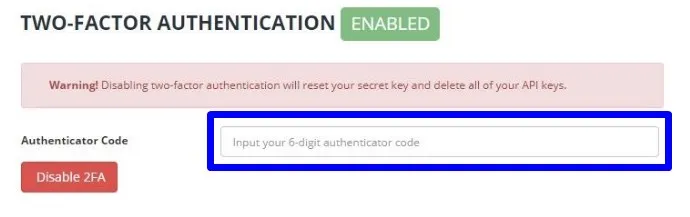
To cancel 2-step verification, enter the 6-digit code displayed in the application of Google authentication system and click "Disable 2FA"
When setting again, it becomes as above
Once reconfigured, both authentication and Secret Key will be new