

Even after using Linux for years...
I keep finding out more great things come with it by default. This post will be a short demo on how to encrypt files with the gpg encryption utility that comes with most distributions of Linux (you don't have to install it, as it's already there). You can install gpg on Windows... but for this article I'll be focusing on using it on Linux.
gpg stands for GNU Privacy Guard
Arguing that you don't care about the right to privacy because you have nothing to hide is no different from saying you don't care about free speech because you have nothing to say. – Edward Snowden
Create the file you'll encrypt
If you already have the file, then you can skip this step. But I'd like to show it for Linux beginners. There are lots of text editors, but for this I'll be using gedit which comes with Ubuntu, Zorin OS and several other versions of Linux.
In the terminal, type gedit file-to-encrypt.txt but name the file what you'd like instead of my demo filename.

After typing this, press Enter. The gedit text editor will open. Type or paste in what you'd like to encrypt:

Save the file and close the gedit window. Back in the terminal, the ls command will "list" or show the files in the current folder. In this case, it's just our single text file.

Now that you know the file is there and it contains the text you want to securely save, we will use gpg to encrypt the file. Use gpg -c followed by the filename.

Once you press enter, gpg will guide you through creating an encryption passphrase.

When you enter the passphrase, the terminal will not show your typing. This is for security so no one could see what it is or how long it is. After you enter it once, gpg will ask you to enter the passphrase again. After that, gpg will exit and will have created a new file with the data of the original file, but encrypted with your passphrase.

Now when we run ls there are two files. The original file and another file with the added ".gpg" extension. We can use the shred command with the --remove option to completely scramble and destroy the original file (if you'd like, this is optional as it is not necessary for all use cases).

Now only the encrypted file is left. You can just keep in on your computer. You could send it to someone in a message or email and give them the decryption passphrase in person or with another communication channel. You could put the encrypted file on a USB flash drive and store it some where safe and then later decrypt it if needed.
Decrypting the file
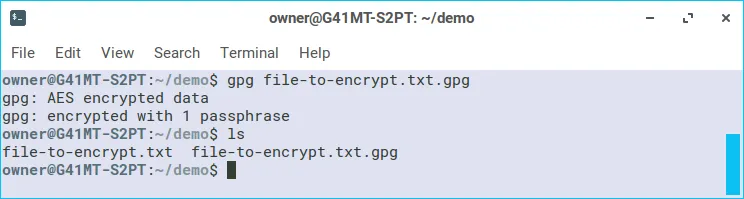
To decrypt the file, just use the gpg command without the -c option. Like this:

Once the correct passphrase has been entered, gpg will decrypt the file. You'll see that there are two files again, as gpg left the encrypted file and created a new file with the decrypted data.
To sum it up:
Until recently, I didn't know about the gpg or shred commands that were there on Linux all along. I'm glad I know about them now and I've already used them to put my Steemit keys on a USB drive. That way, if the drive ever gets in the hands of someone else they wouldn't be able to read my files.
The thing is... you have to remember your encryption passphrase. If you don't, your data is lost to you. You can't get it back. Make sure you commit your passphrase to memory or have some reliable way of storing it.
Now, go. Encrypt your data. Keep it secret. Keep it safe.