Want to take Lightning Network for a spin?
For Android: Download the Eclair Wallet for Android
https://play.google.com/store/apps/details?id=fr.acinq.eclair.wallet&hl=en
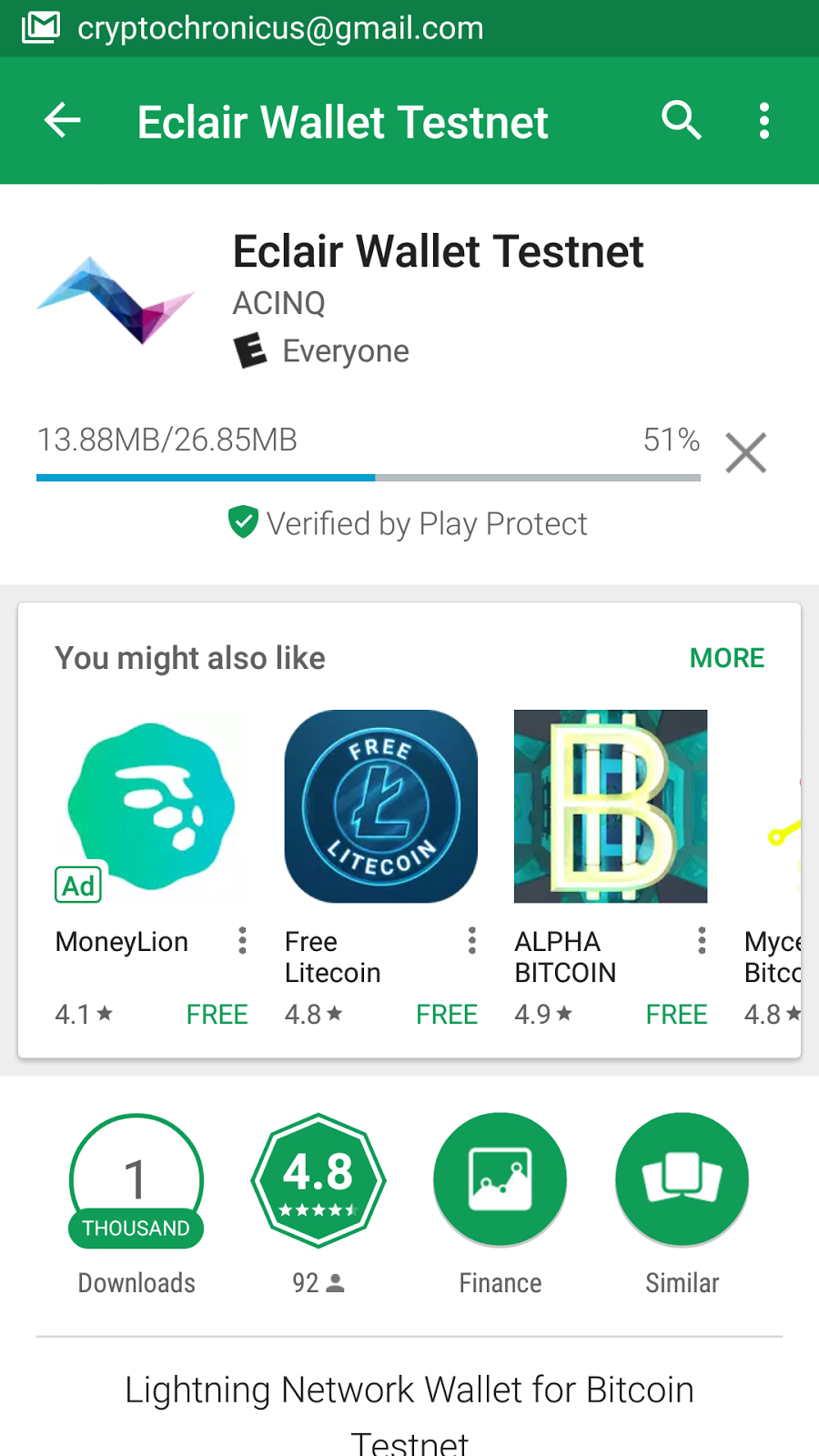
Go to the Google Play Store, and search for "Eclair Wallet Testnet", and then click "Install"
Click on "Accept".
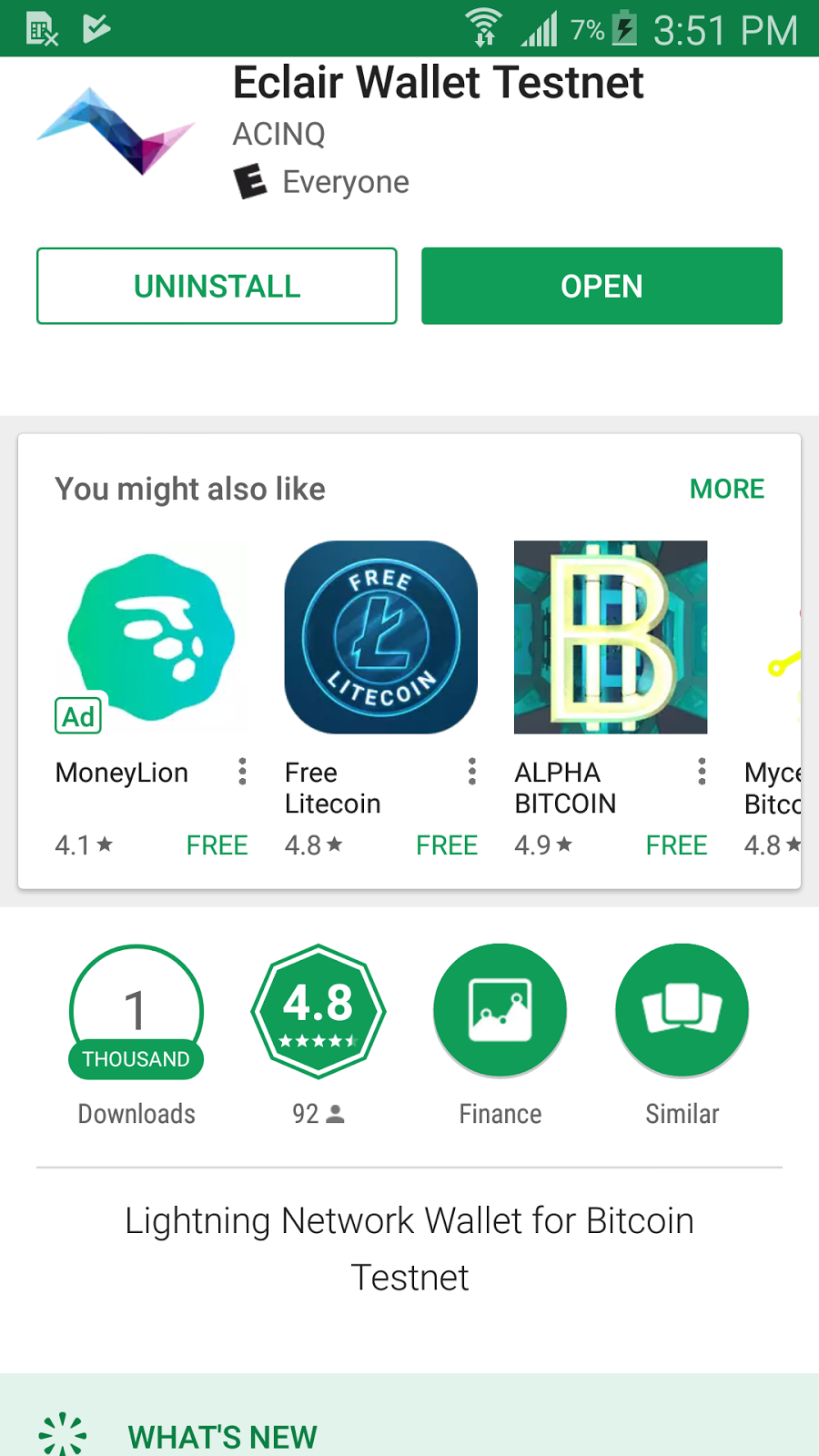
Once it it finished downloading, click on "Open"
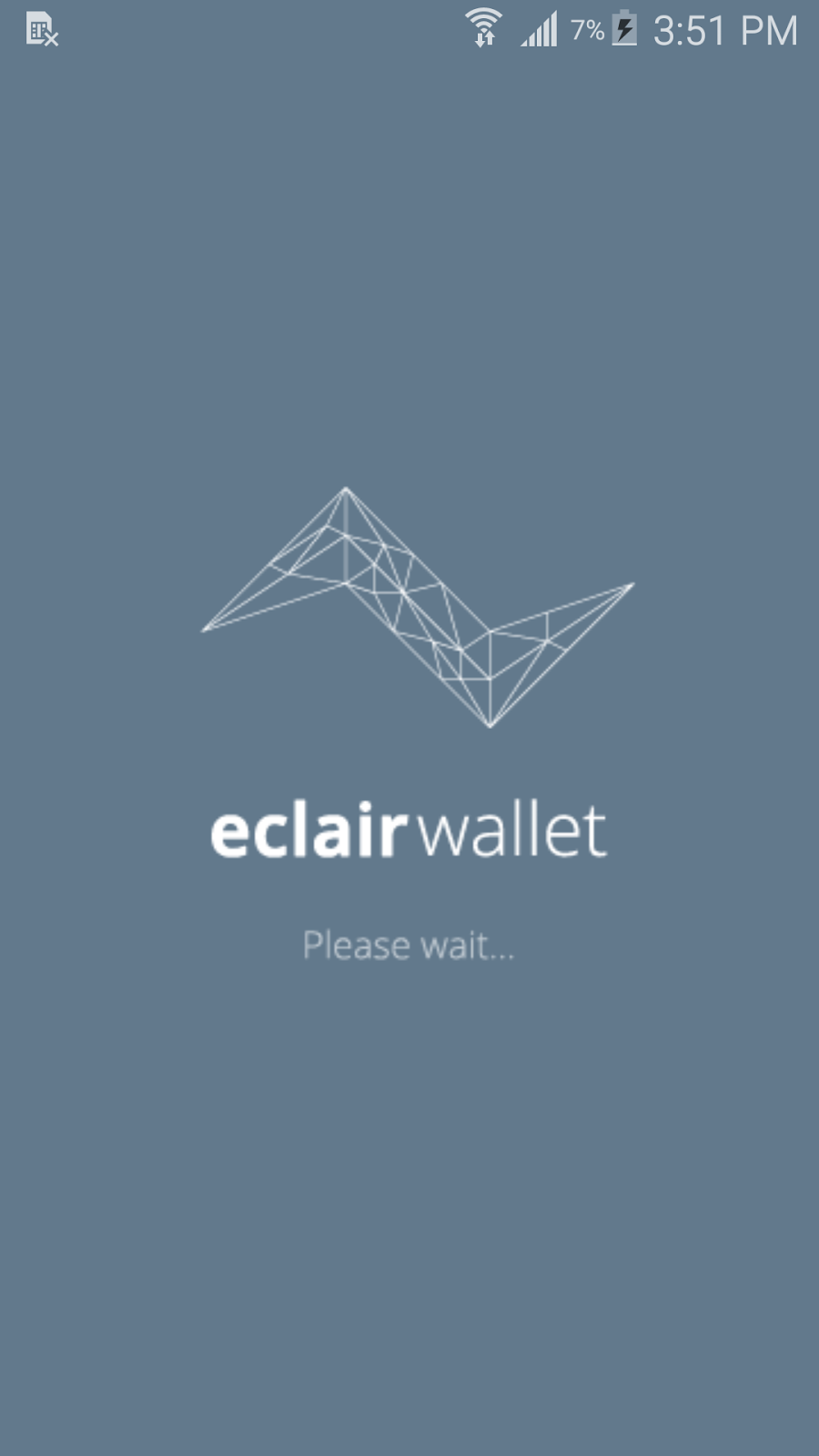
Here is the loading screen
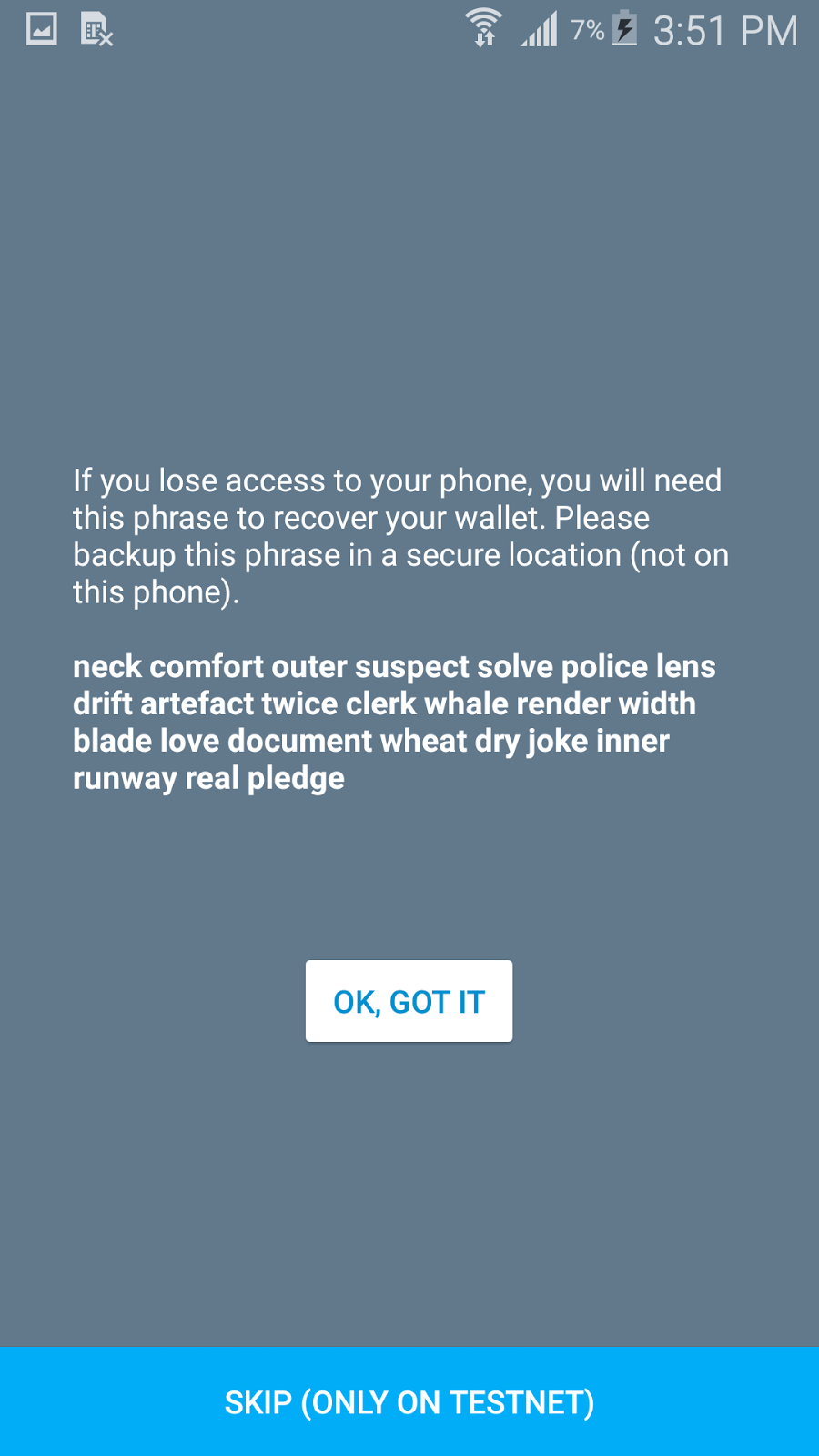
At this screen, this is where you would write down your recovery phrase. I typically just click "Skip" (at the bottom) and do not bother with this, as it is just the Testnet anyways.
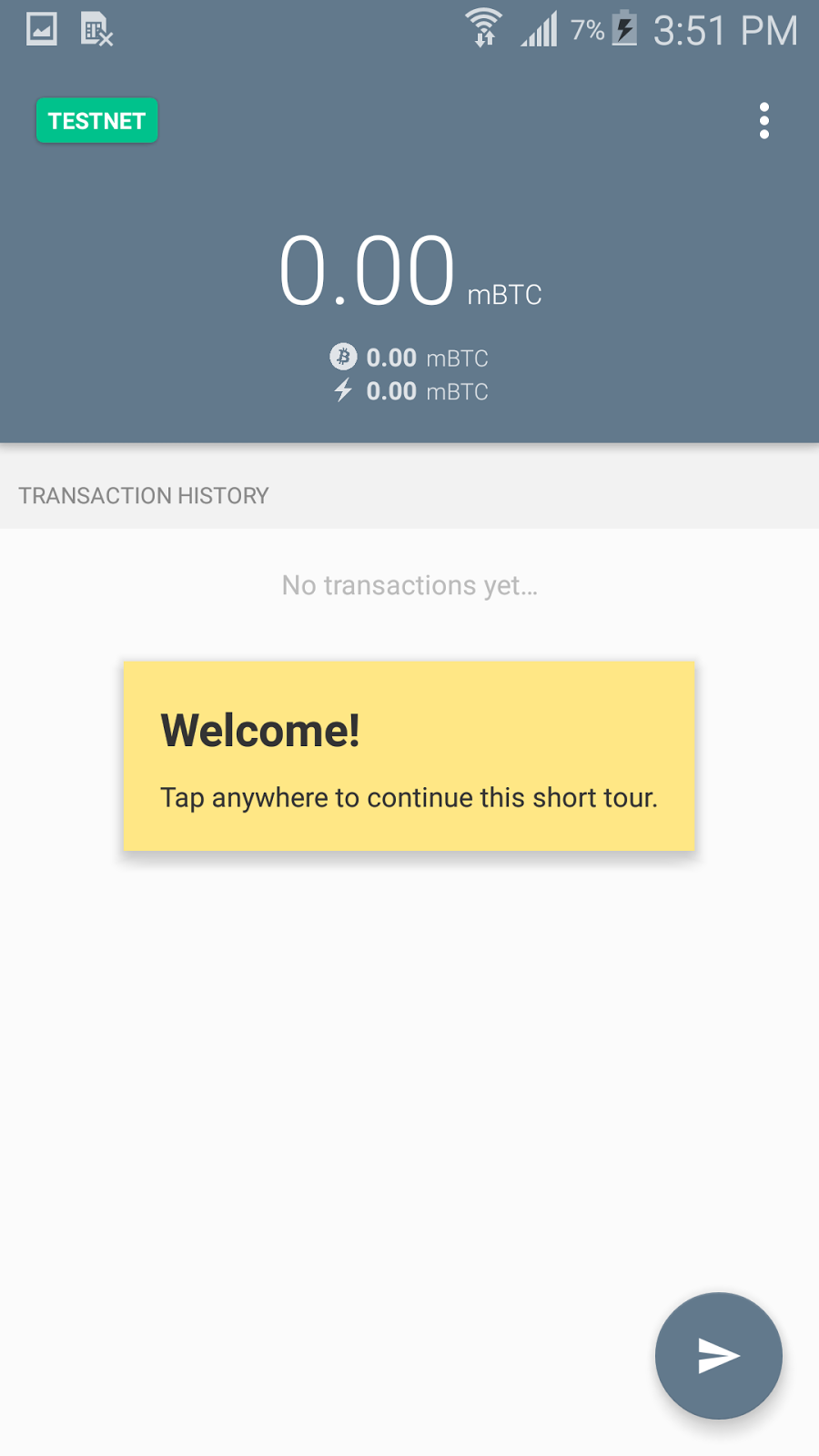
Here is the Welcome screen (Home screen). It will explain that to your LEFT is your WALLET ADDRESS & QR CODE. and that to your RIGHT, is you NODES & PAYMENT CHANNELS.
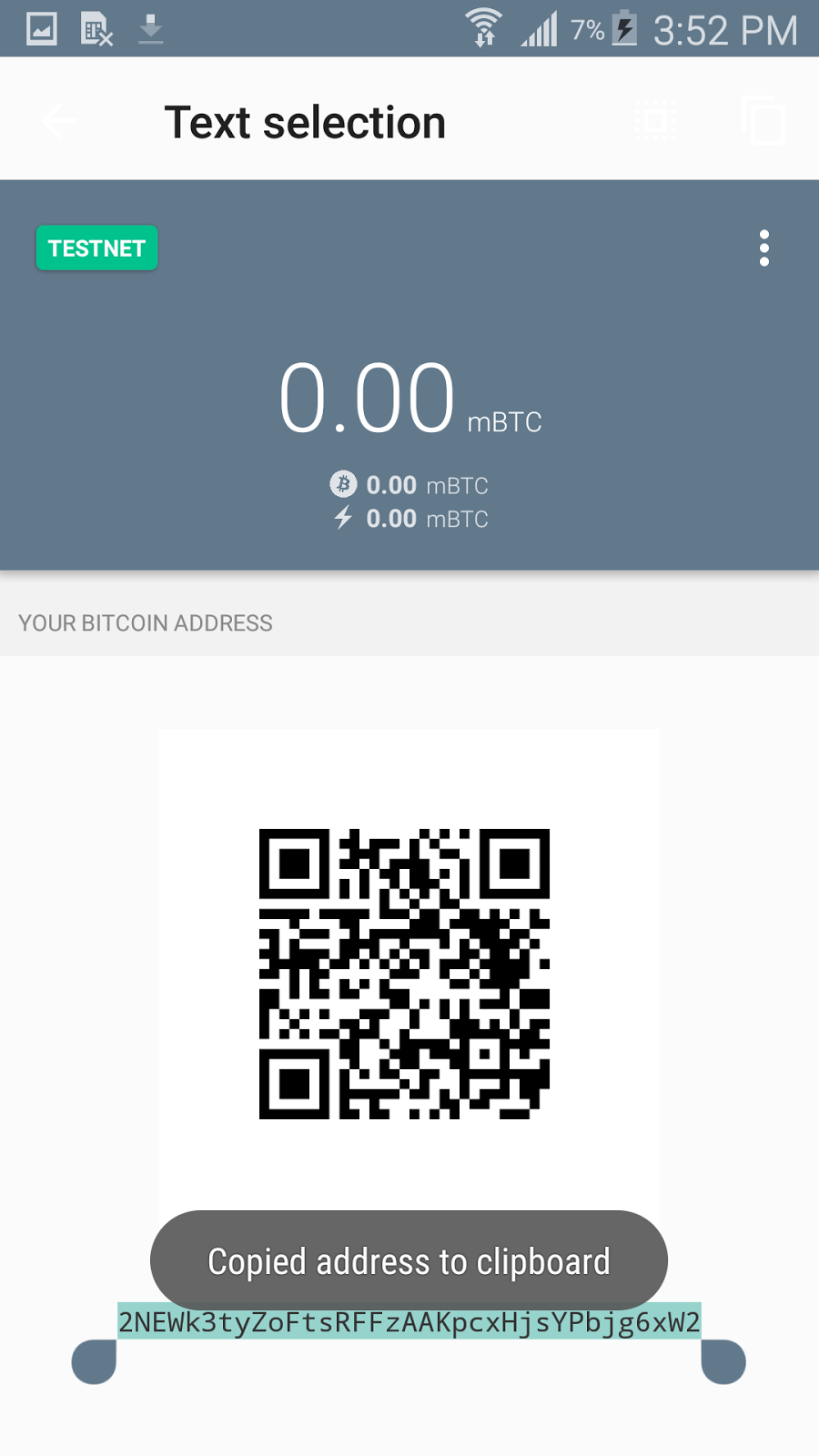
Let's get started! Go to your LEFT, by swiping, and tap on your wallet address to copy it to your clipboard, so that we can paste it into the address field at a Bitcoin faucet to get some coins.
---
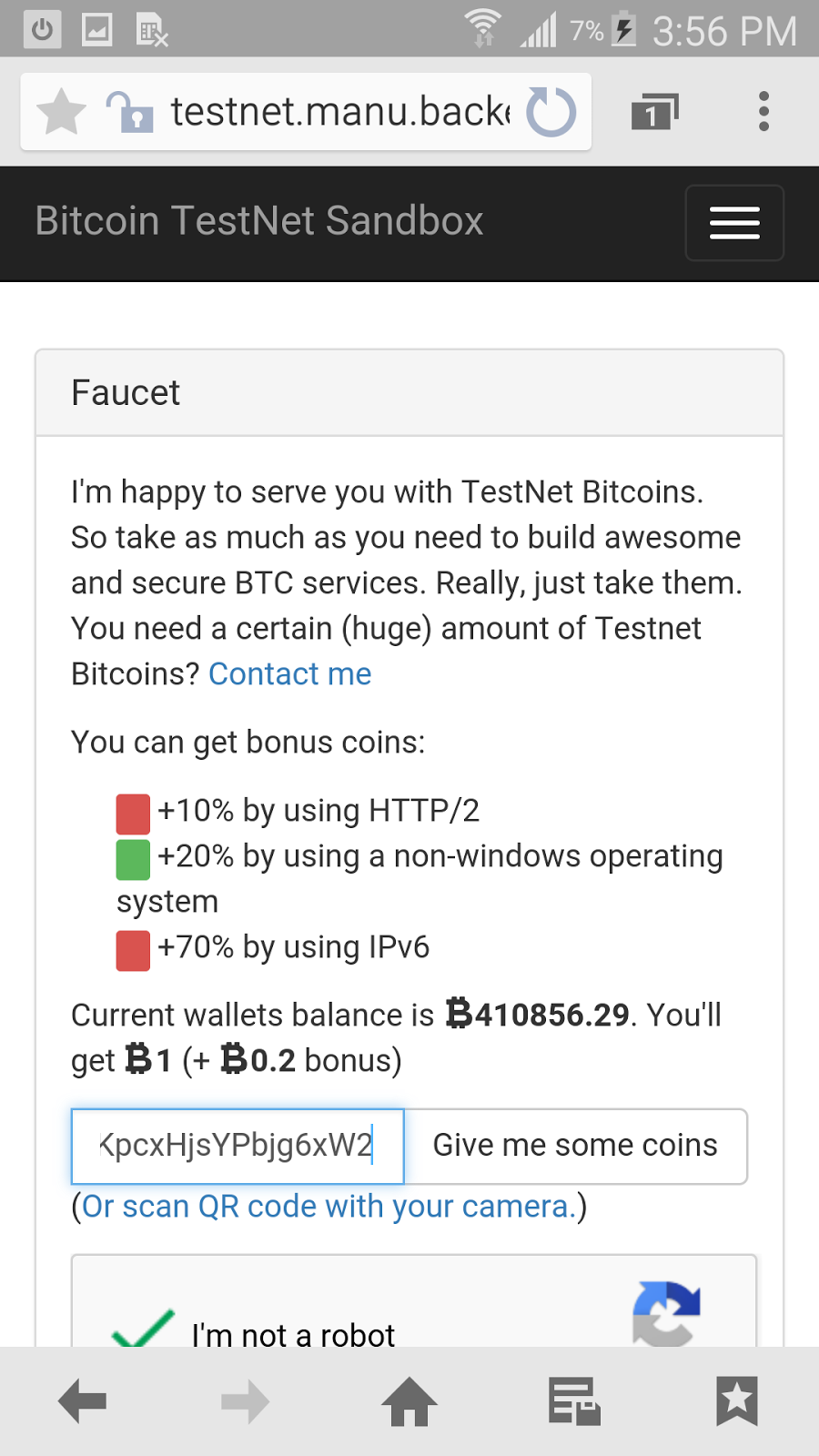
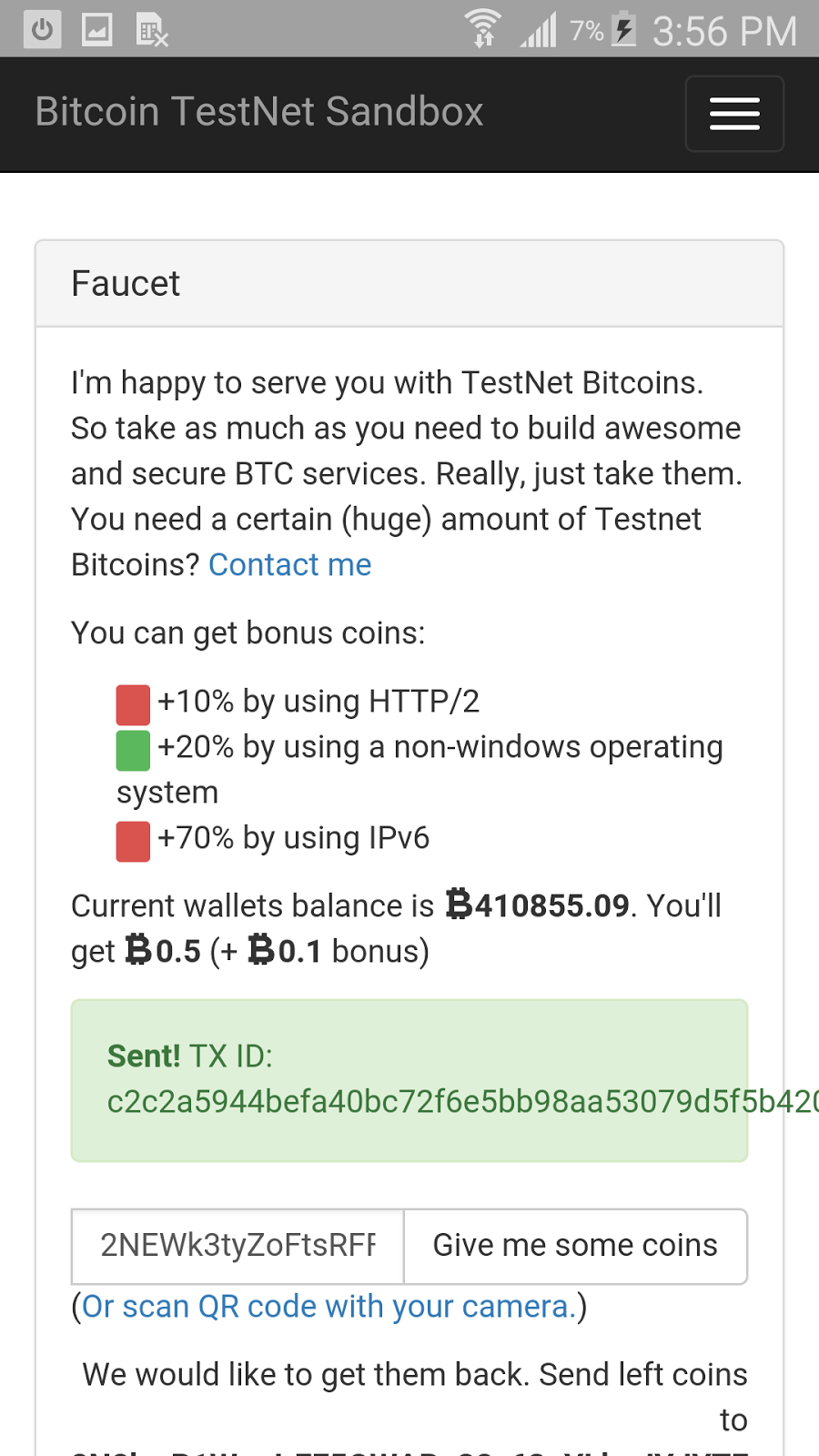
You need Bitcoin tokens to test right? Let's go get them!
It should look like this:
Paste your wallet address that you copied from the Android Eclair app. Then prove you're a human by checking the CAPTCHA box where it says "I'm not a robot", then click "Give me some coins". Let it load, it should tell you the transaction was successful.
Now switch back to your Eclair app, and you should now have some coins to play with!
Next thing we need to do, is to open you up some payment channels, so they your payments don't have to wait to get into a block on the blockchain. In order to do this, the easiest way that I have found, is to go to the Lightning Network Testnet Explorer on ANOTHER DEVICE than your Android phone, and bring up a NODE QR CODE on the OTHER DEVICE, and then SCAN than QR Code using your Android device to add the node(s).
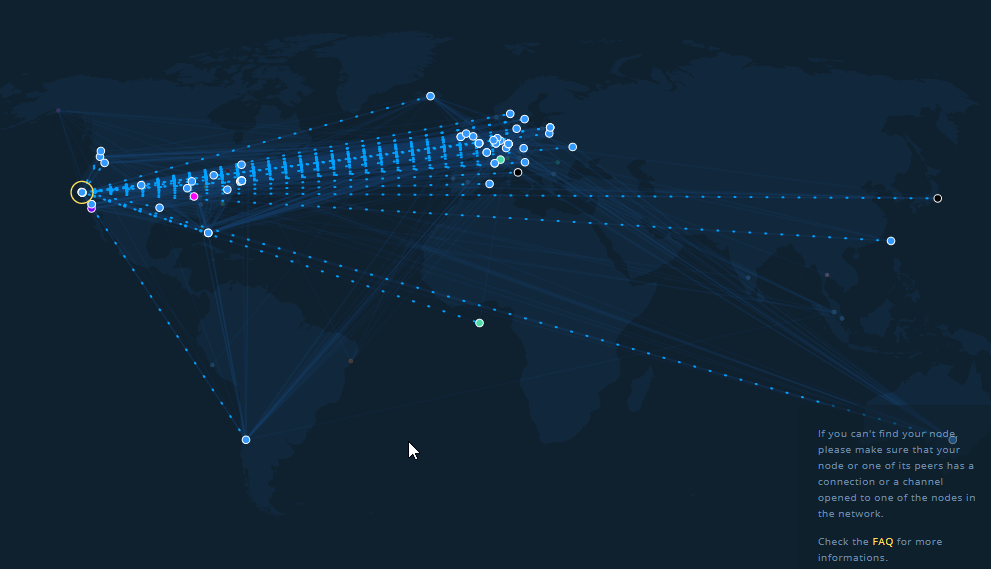
Go here to the Lightning Network Explorer: https://explorer.acinq.co/#/
It should look similar to this. Different screen sizes and devices may organize the content in different ways, but the basic look should be similar to this:
Now, click on one of the dots, which is a Node:
Pick any one of the Nodes. The ones with the most connections are more desirable:
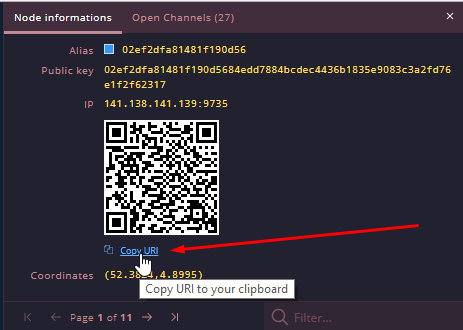
Now on the side or below, once you select a Node, you will see a QR Code
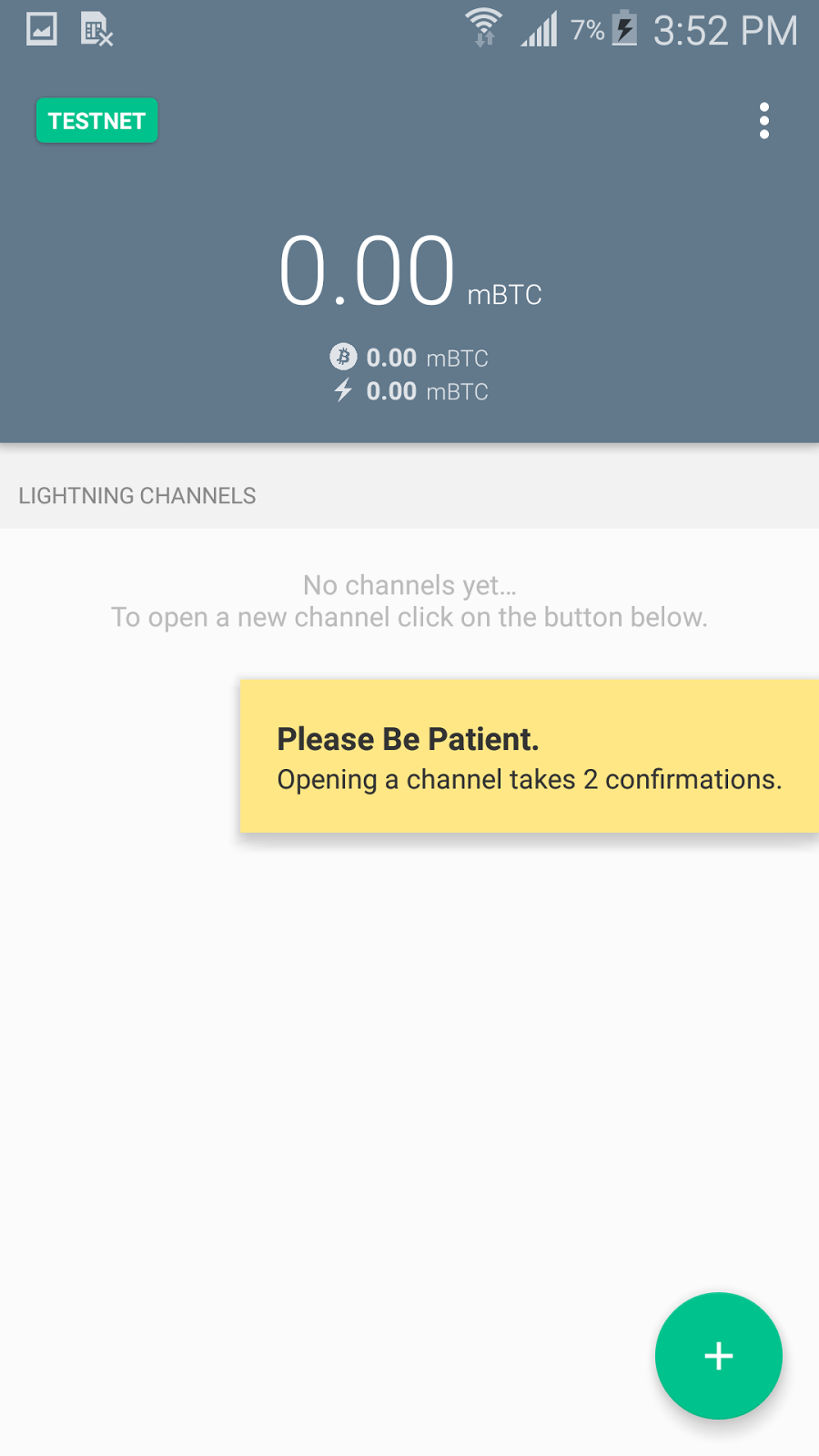
Use your Android Eclair app. Go to your RIGHT by swiping.

Click the "+" sign, and select "Scan a Node URI"

...and then scan the QR Code of a Node:
Enter the amount you want to put into the channel for spending, and then click "OPEN". The max is usually around 167 mBTC, so I usually just put 150 mBTC.
___IF YOU CANT BROWSE LIGHTNING NETWORK EXPLORER ON A 2ND DEVICE__
Just go to the Lightning Network Explorer on your Android, and do the same, click on a circle/dot, and right below the QR Code you can COPY the Node URI
Then, instead of selecting "Scan Node URI", you would select "Paste Node URI", and the Eclair Android app will grab the Node URI from your clipboard for you, and then you proceed as usual, by entering your channel amount (150mBTC for me) and click "Open".

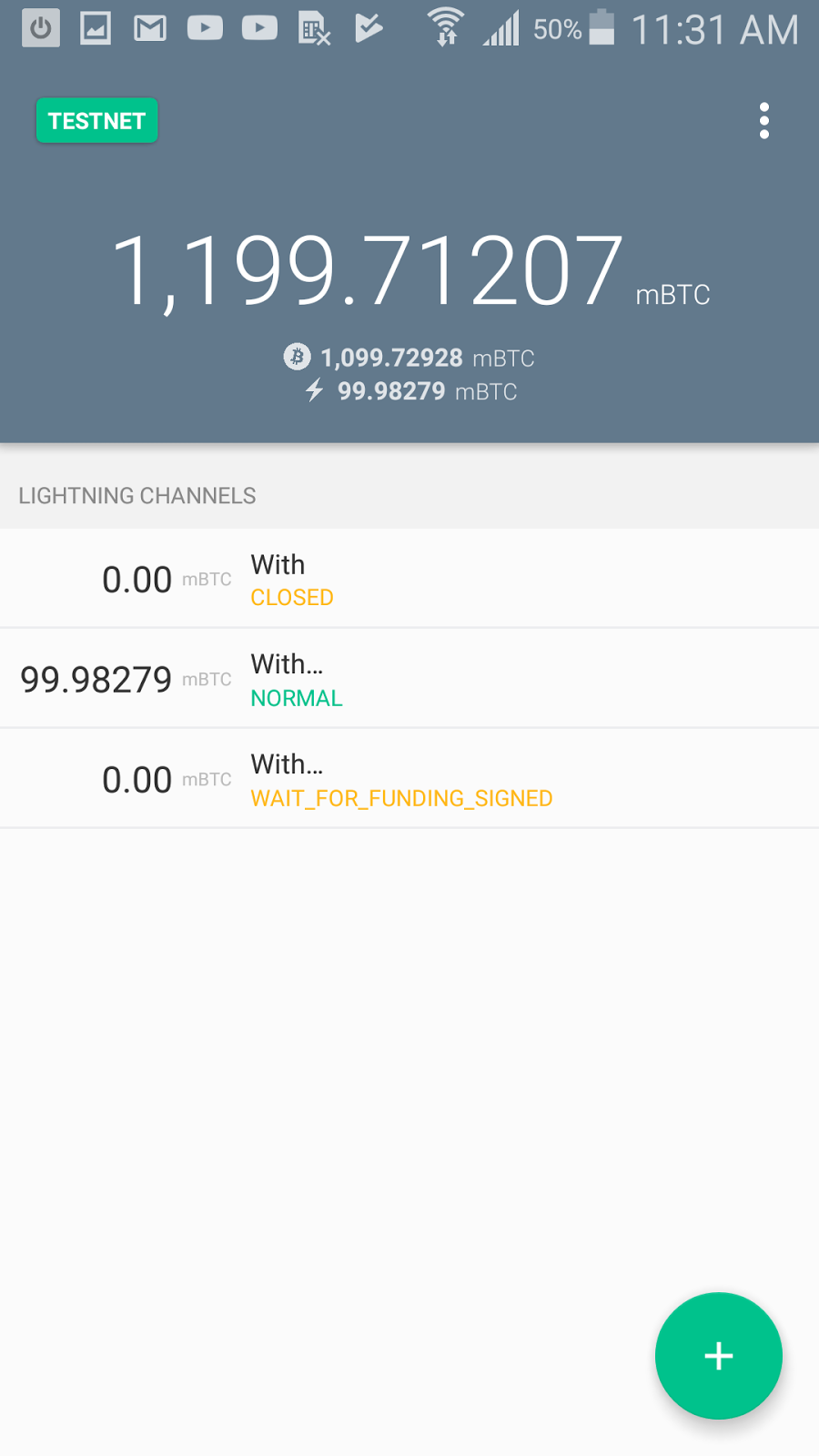
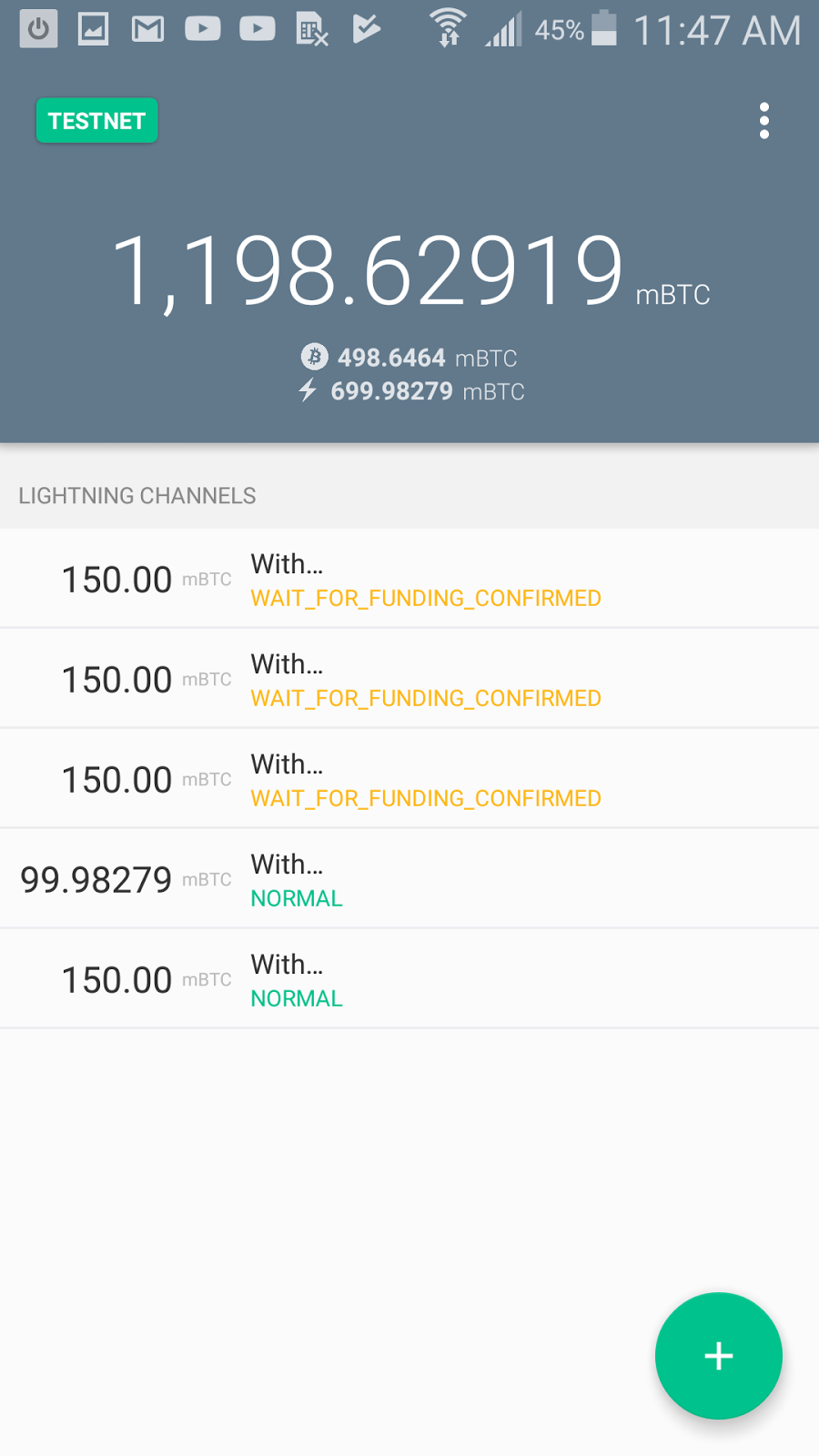
After that, you will need to WAIT for the channel to be opened, this happens on the blockchain. which means anywhere from 10-20 minutes for the channel to be open. At first it will say something like "WAIT_FOR_FUNDING_SIGNED" in yellow letters, and when the payment channel is finally open, it will say "NORMAL" in green letters.
If it says "Error: Timeout" or anything other than that, just try another Node, as that one may already be at capacity, or it may be private, not accepting new connections.
OK, so while you wait for that payment channel to be opened, maybe you should add as many Nodes as you can. I like to add 5-7 at least, sometimes one goes down, sometimes that close. At any time, any party can leave the payment channel. This happens when people want their funds back, to send somewhere else I suppose.
After about 10-20 minutes, you should get you payment channel normalized & open. It looks like this:
There! The setup part is done! Now lets go try it out!
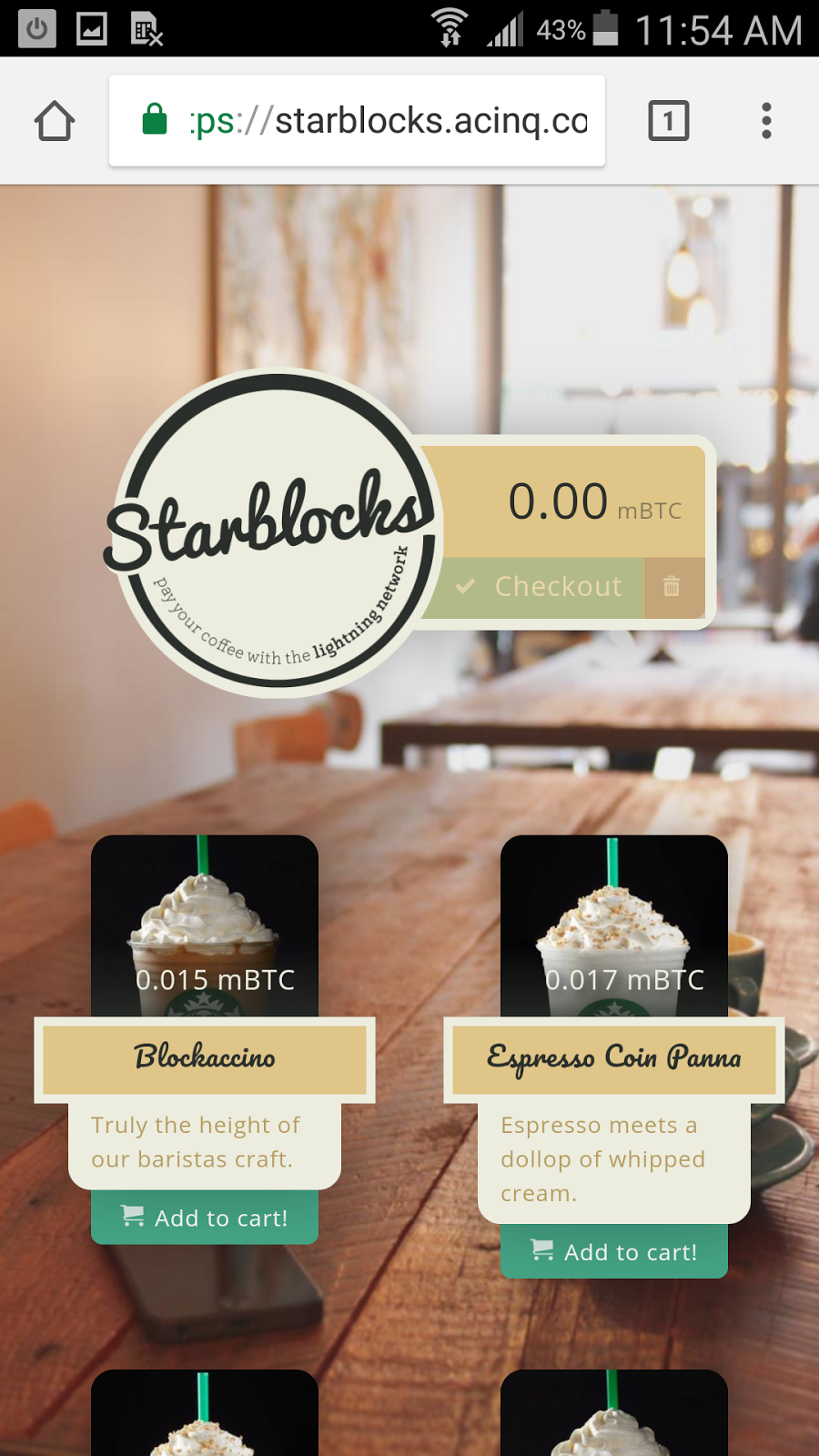
Go to Starblocks and buy a coffee!
Click on a coffee to add it to your shopping cart, and click "Checkout".
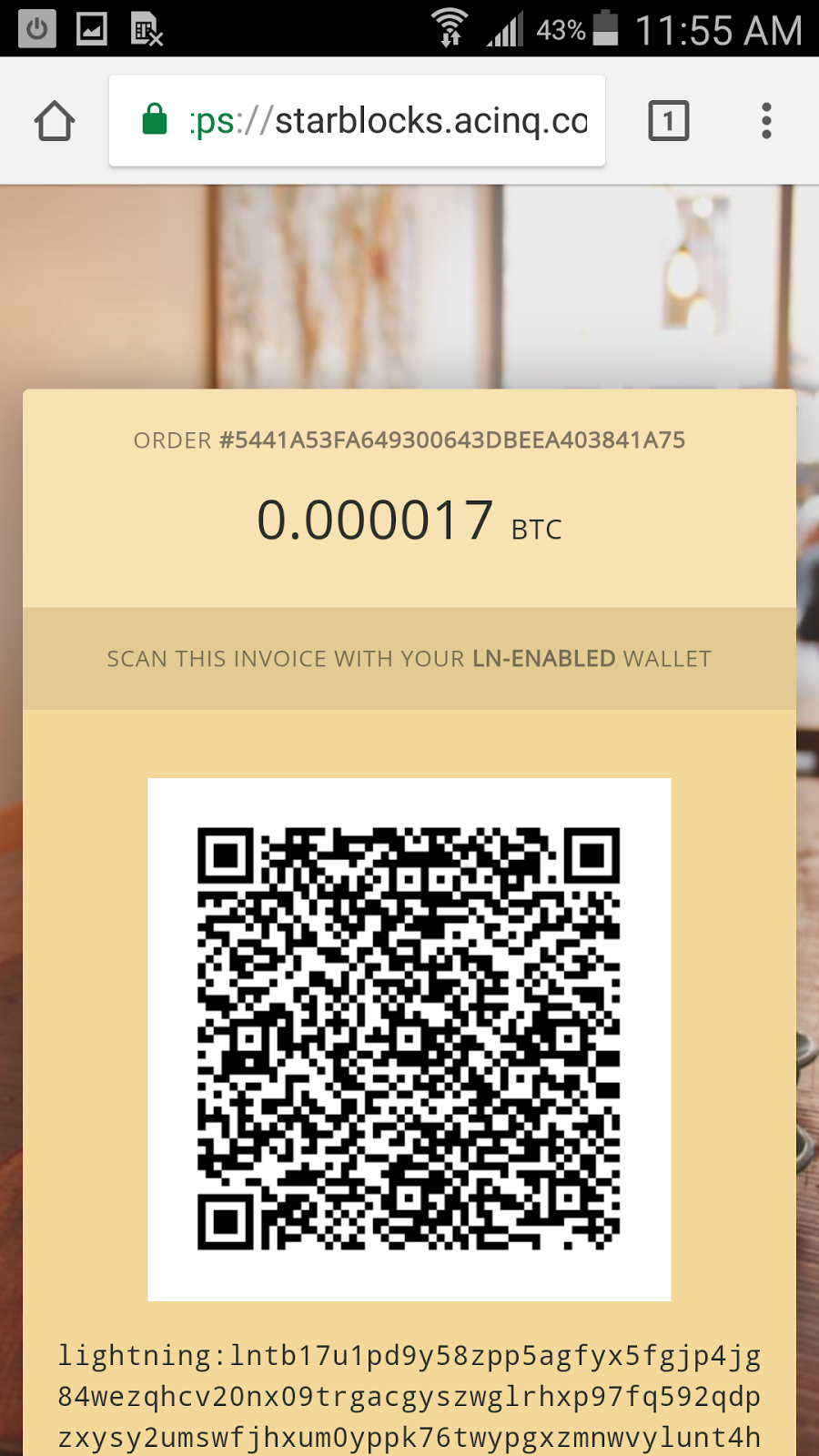
It will Generate a Payment Request (invoice)
Scroll to the bottom, you can copy the jumble of letters, or if you are on your Android, and have the Android Eclair app, (which now you do) you can just click where it says "OPEN WITH YOUR WALLET"

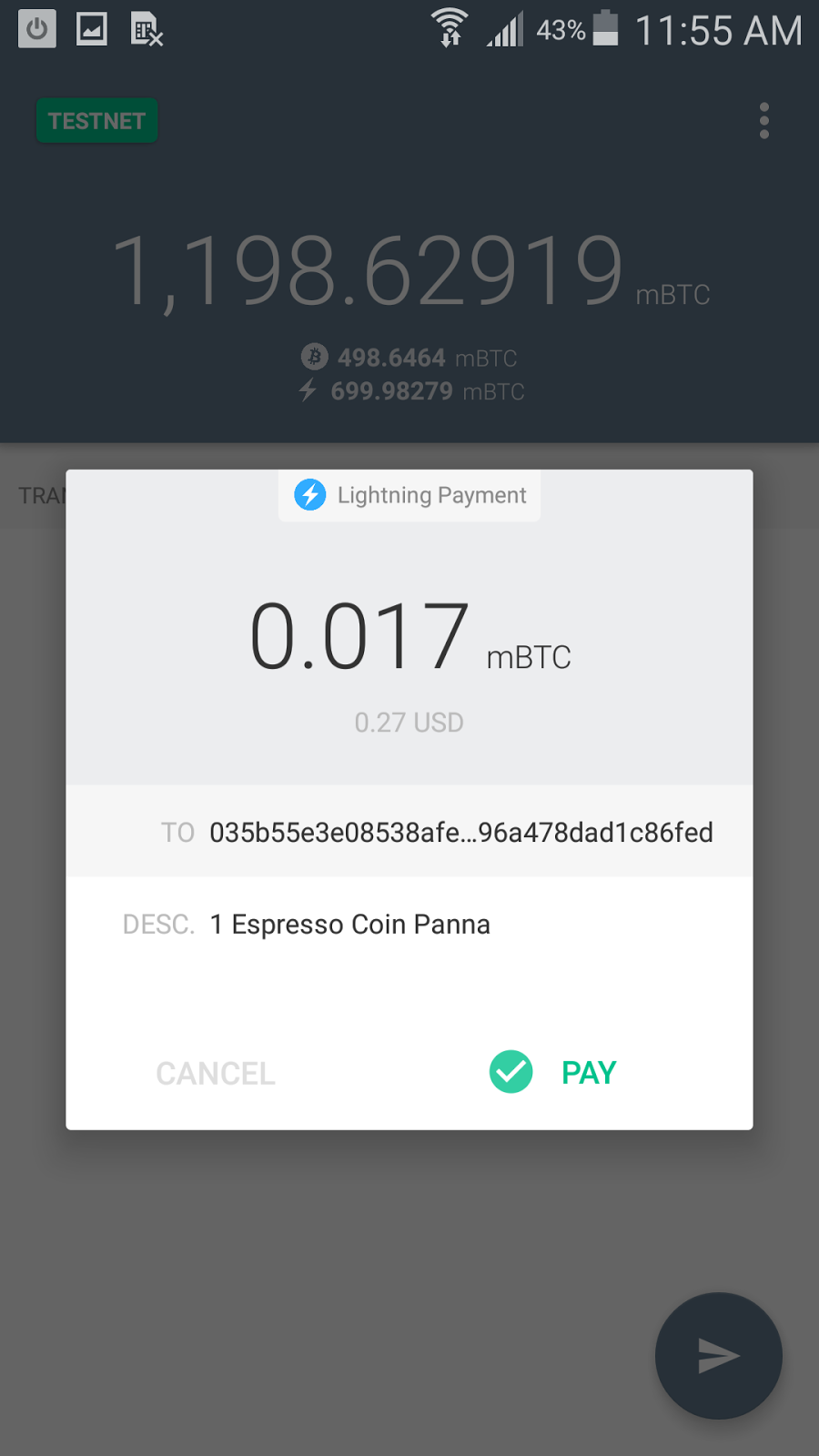
Then at this screen, simply click "PAY"

For a split second, it may say "Pending" in yellow.

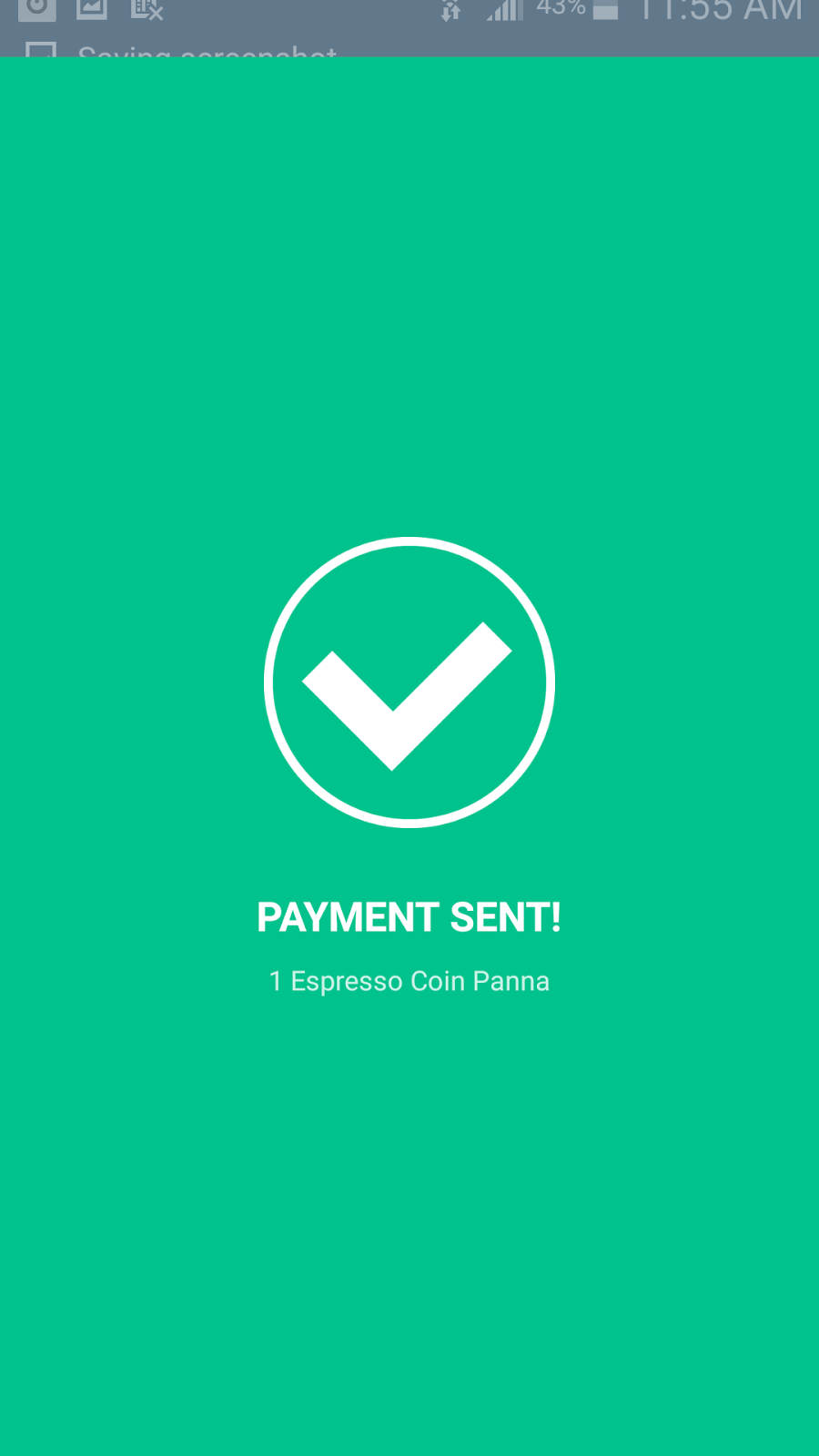
Usually in about 1/3 of a second or less, it will say "Payment Sent!"

...and now it shows as "PAID" in green.
You did it! You finally got your damn coffee! XD
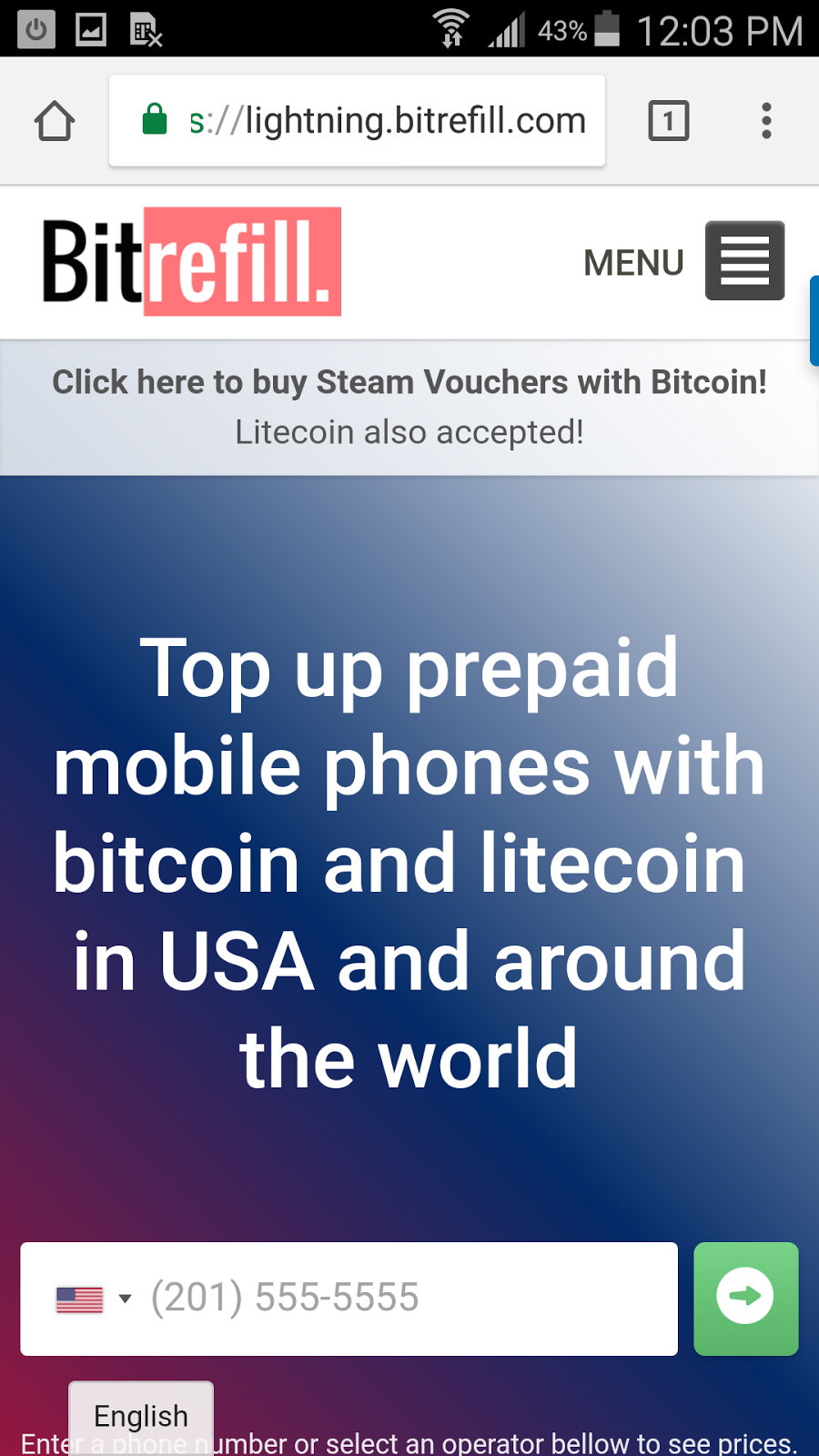
What about other stuff? Let's go try and add minutes to our cellular phone, yeah!?
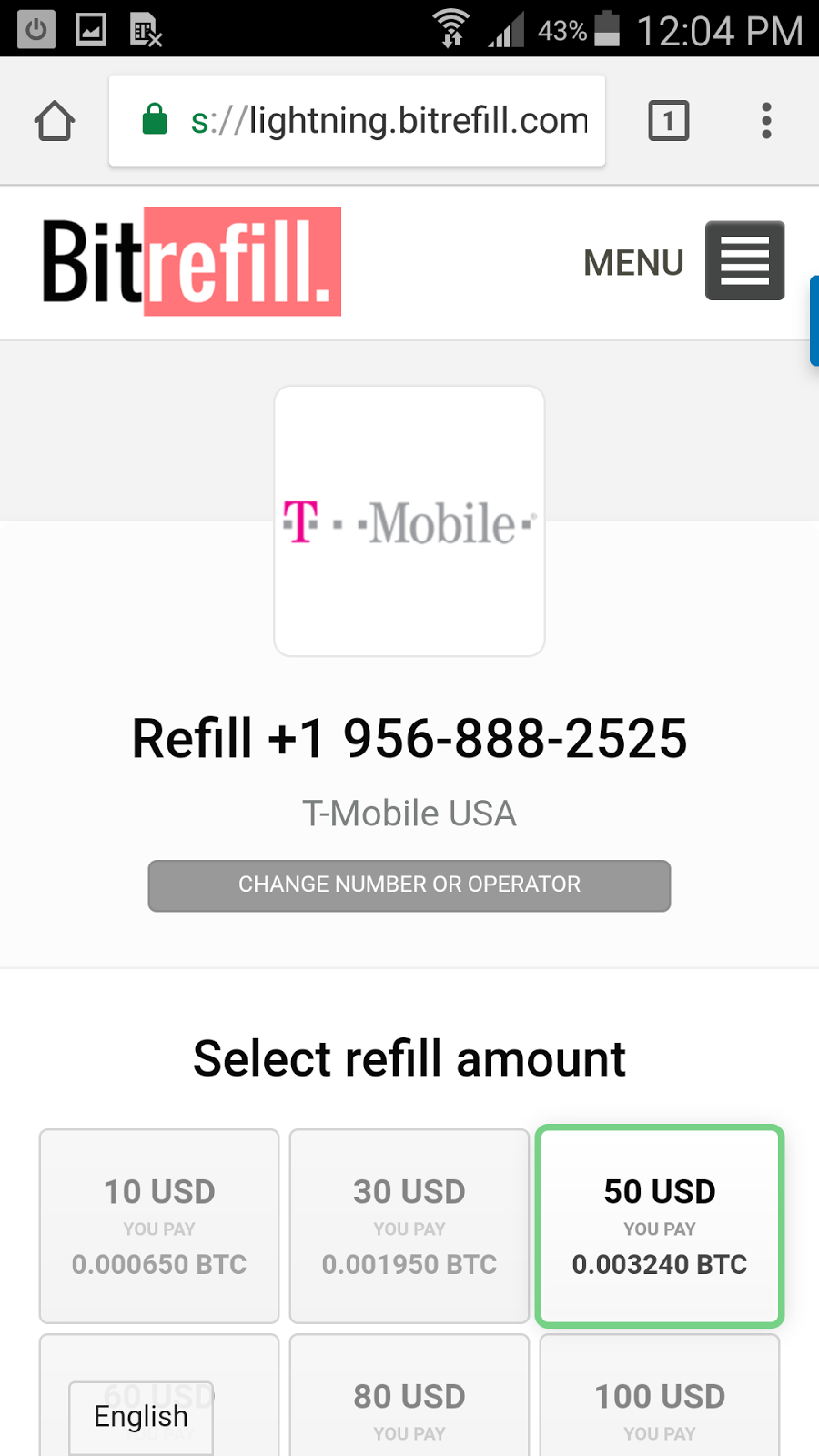
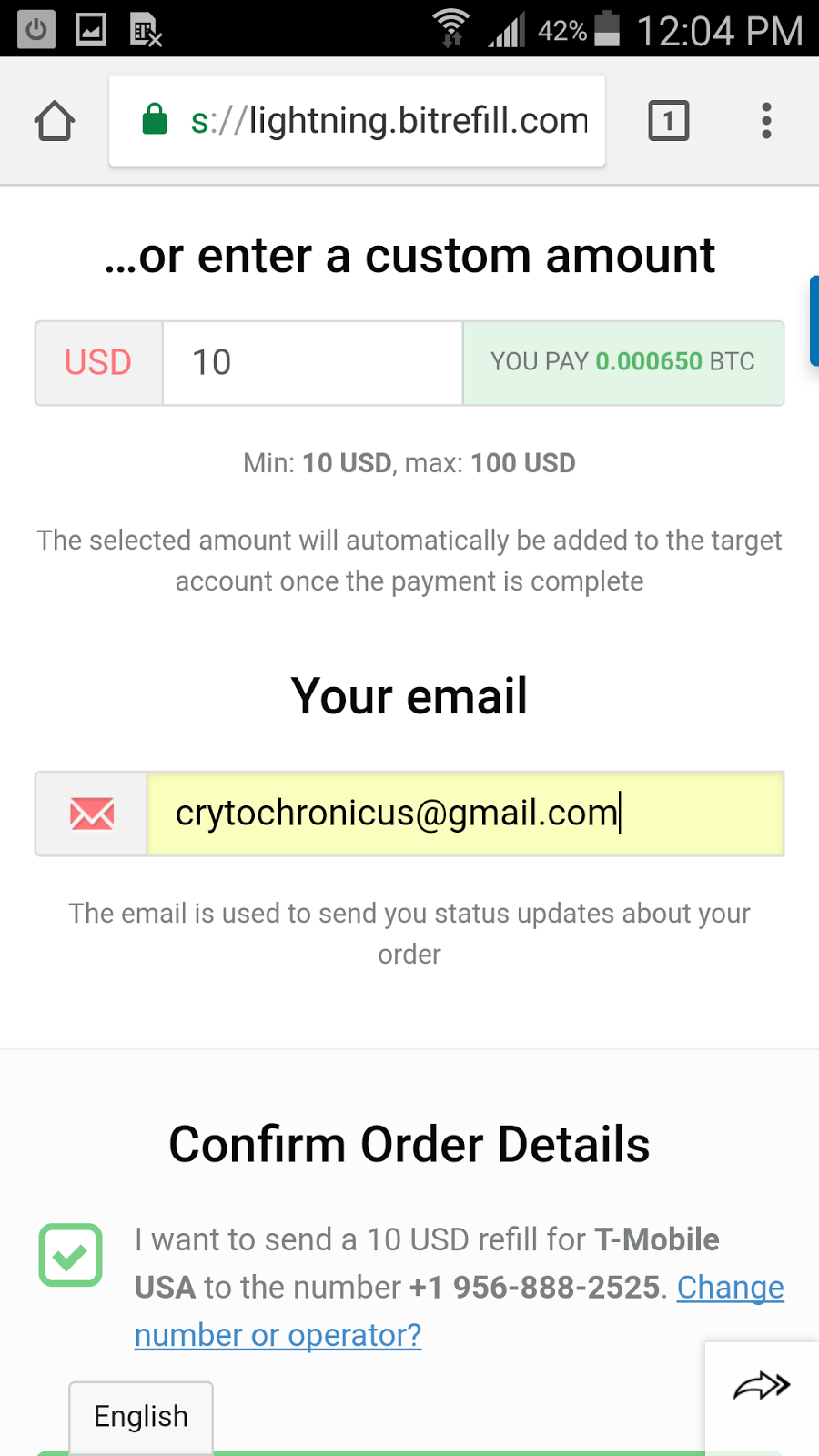
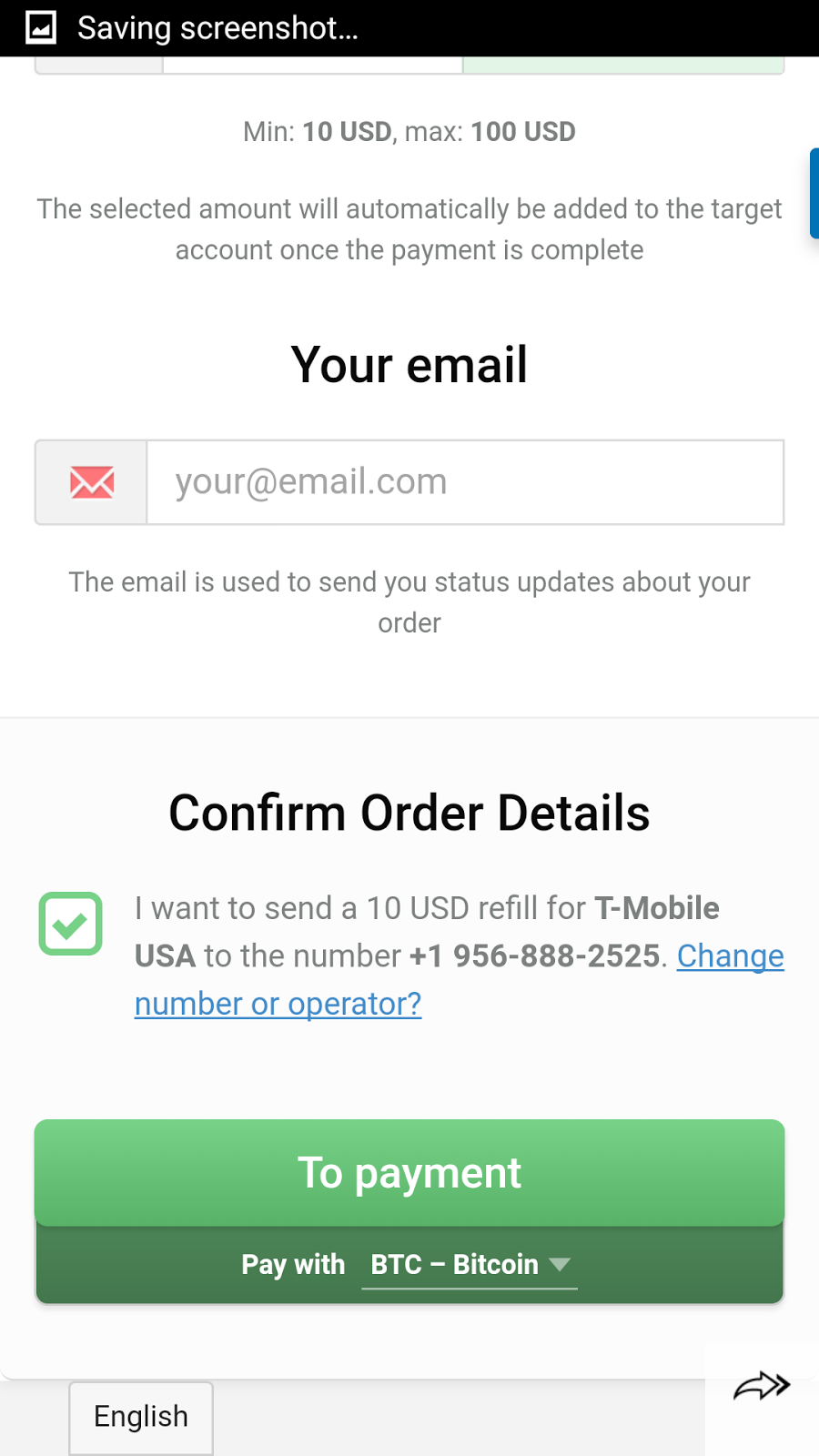
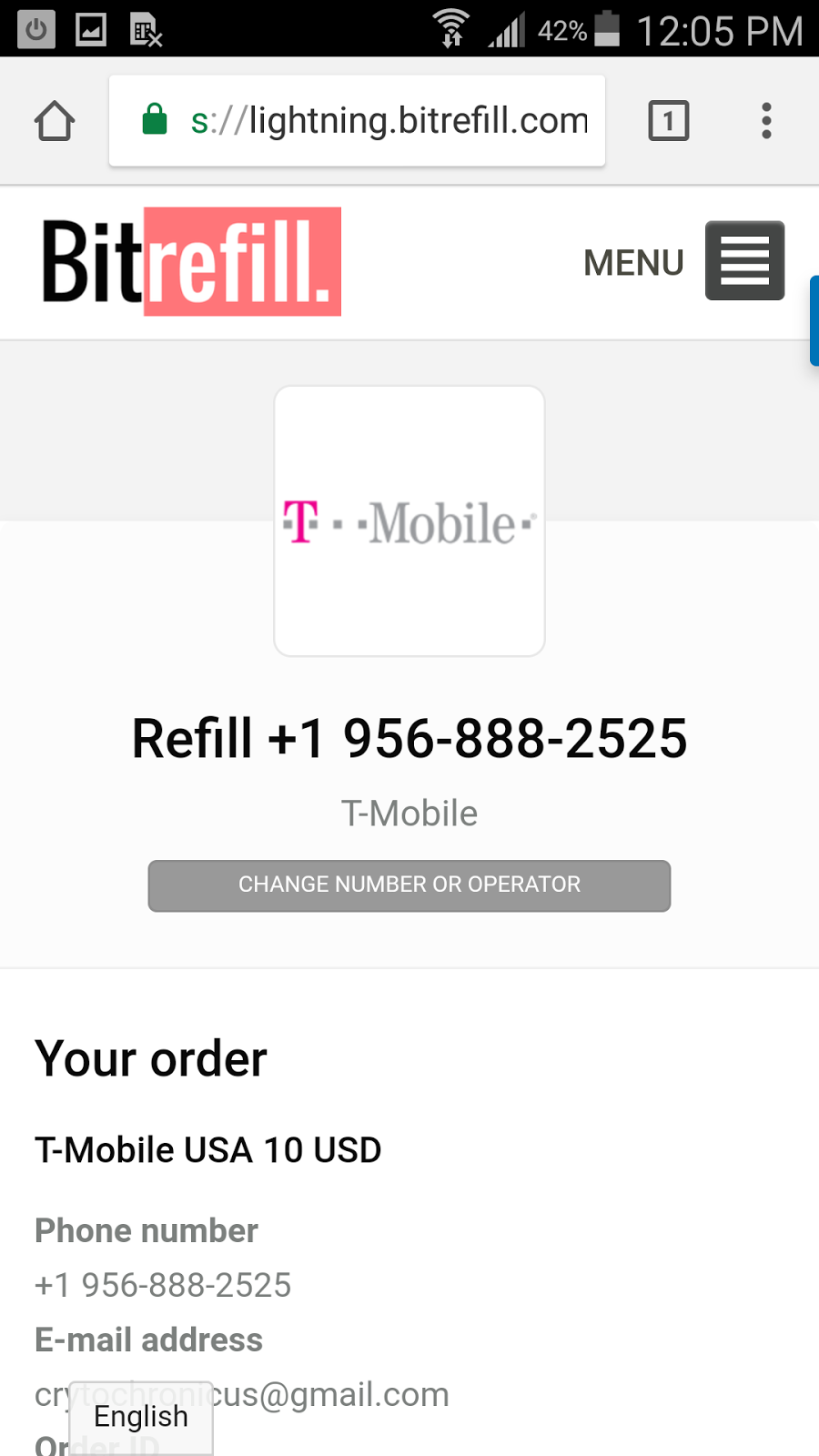
You can do basically the same thing, enter your phone number, email, check the box to say "I Agree", click on "To Payment" in the green box.
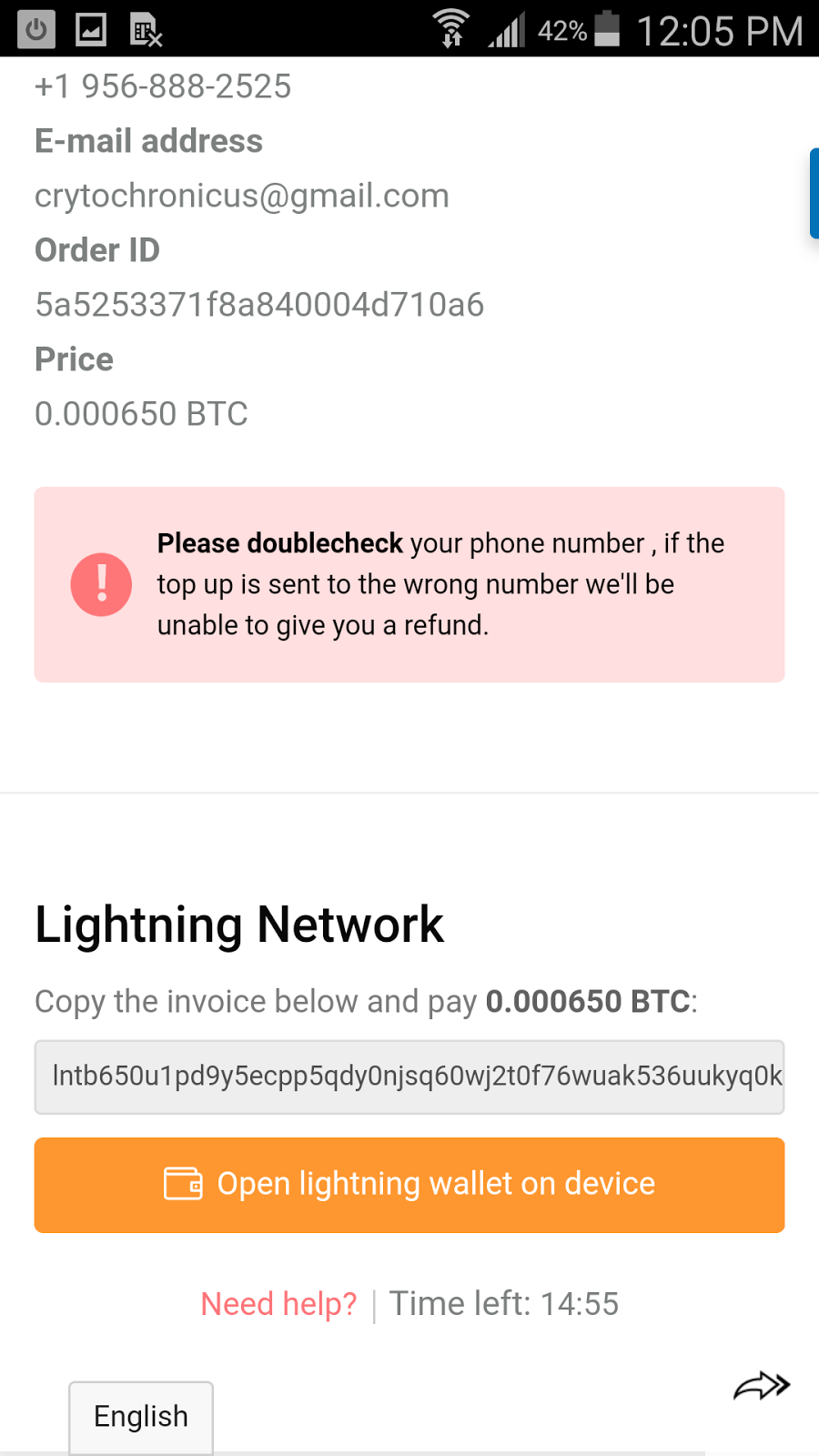
Then click on the amount you want to add, in my case $10. and then click on the orange box where it says "Open Lightning wallet on device."
Then click "Pay"
That's it!
If your channel hasn't been open very long, it may say "Pending" in yellow for a while. Once your channels have been open long enough, the transactions start going through instantly!
By now, all your Nodes you attempted to connect to to open your Payment Channels should be done. They will say "Normal" in green letters. If not, don't seat it, give it some time, and if it doesn't go through, just close that channel out and open another one with a different more reliable Node. You start to figure out which Nodes are always up, and just stick with those mostly.
That's it! As new merchants are added, and as more Nodes come online, the more networked and the faster and cheaper the whole network will become to use!
Remember to ask questions if you have them! I will get to everyone! :)
**IF you want to try it out on a Windows 10 Desktop PC:
For Windows PCs: Lightning Desktop App
For Linux: If you have Linux, I am going to go ahead and assume all you need is a link ;)
Follow me on Twitter, I am very very active there! https://twitter.com/CryptoChronicus
also, I have a website which is http://www.CryptoChronicus.com
I have a 24/7 Live Stream on YouTube with good music and Bitcoin charts, in case you want to check on BTC real quick. Everybody has YouTube, so you should be able to get to it VERY quickly just to check the price real quick anywhere on any device!
I am also Crypto Chronicus on YouTube. Subscribe if you want!
https://www.youtube.com/channel/UCsbqGrJ5xzrd0TWQocXnN1A
This is my first real post on Steemit, I worked real hard on it, so if you could UPVOTE it that'd be freakin' GREAT!
:)