
Hello friends!
As you know, the 
https://www.dlive.io/#/ log in to my site. Then click the Go live button.

The page will appear in the photos below.


- From here you can see a cover photo from ''THUMBNAIL''.
- ''TITLE'' section from the title of the publication.
- We are writing information about our publication from ''DESCRIPTION''.
- After the selection of the category, language, and label, everything in the live broadcast is ready.
- Be sure to note the information in "Encoder authentication". Now we are installing our OBS program on my computer.
https://obsproject.com/download here you can download the appropriate setup for your operating system.
After installing our OBS computer, we are opening it.

Here, we press the '+' key in the '' Source '' tab. From there, we click on the '' game capture '' part like the photo.

The new window opened is called okay.


- Select "Capture specific window" in the "Mode:" section, another pane will be opened at the bottom, from which you can select the game you want to project on the screen. (Eg Counter-Strike: Global Offensive.exe etc.)
- The backplane of the game / application you want to reflect on the screen needs to be open. If it is not open, obs will not be broadcast.
We click on ''settings'' button like in photo.

We go back to the system we left open in Dlive.io. We fill in the "Encoder authentication" section.

After filling the places like the photo, we have entered the necessary information for our live broadcast. Then we say apply and save our settings.

"Video Bitrate:" In this section you need to set a value for your internet based on the "Upload" speed. It is necessary to set a Bitrate value between "700-900" for 0.50-1.0Mbit, "1200-1300" for 1.0-2.5Mbit and between 1600-1900 between 2.5-5.0 + Mbit.
"Encoder:" If you use a Nvidia chipset with "NVENC" you will greatly reduce the load on the CPU. Use AMD friends x264.
- You can adjust the broadcast speed from '' Audio Bitrate ''. But I suggest that due to the internet speed of 48-72 in Turkey.
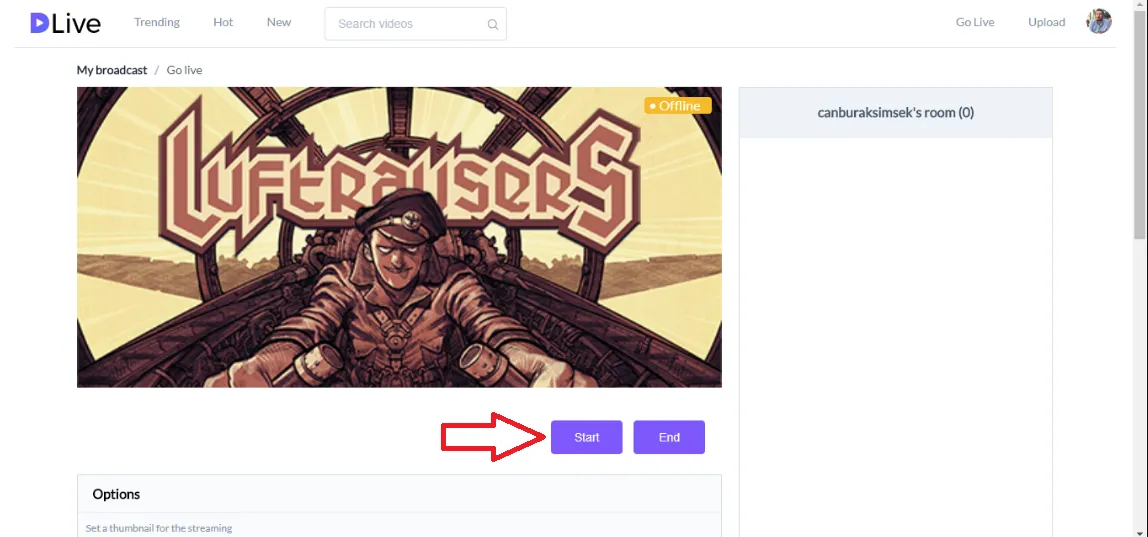
We're finished with your broadcast settings. In Dlive.io site, we press start button and start our broadcast. Then we start broadcasting from our OBS program like the following photo. And our publication is beginning.

Note: If you want to finish your broadcast, after you press "Stop Streaming" on OBS, you have to enter DLive again and press "Stop" from there.