
If you are using Firefox and do not want to enable DRM content, you will have to keep clicking away a notification like you see below:

As you can see, there is no way to say Never and you will keep getting this message until you finally give in and click Enable DRM.
A workaround to this problem does exist, but you have to go to a special place: about:config. This is a special URL you can put in the location bar of Firefox to edit configuration parameters of Firefox directly.
If you want to not enable DRM and also want the notification to not pop up, you will have to enter about:config in the URL, accept the risks, and then search for eme.ui. Double click the option which says browser.eme.ui.enabled to toggle between false and true. You want this option to be false as shown below.
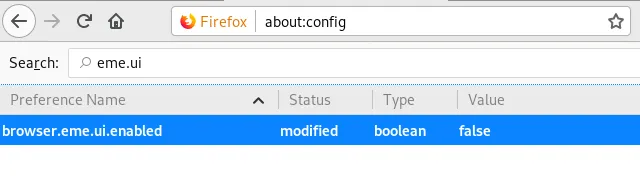
After this, the annoying yellow pop-up is gone and you will no longer see anything related to DRM in the browser.
If you want the notification back, simply enter the about:config page again and make sure browser.eme.ui.enabled is set to true again.