

In this digital age and time, maintaining some focus or concentration is always an ongoing battle. There is no shortage of distractions from devices and apps sending in notifications almost every second. When you start a new task, there are many chances you will not finish it if you fail to manage distractions from several notifications.
Interestingly, windows 10 come with a built-in feature that enables you to set up your notifications in a way it does not interfere with your work. This feature is called focus assist
Understanding Focus Assist set up
Like I mentioned above, Focus Assist is a feature of windows 10 aimed at minimizing distractions from alarms and notifications. I will now run down how to activate focus assist in your computer and make the appropriate settings. You can take the following steps below
Step 1: On the Search bar, Type Focus Assist and hit the enter button. Click on the menu icon to open it. Check Image below:

Step 2: There are three major options you can choose to customize focus assist as you can see below:
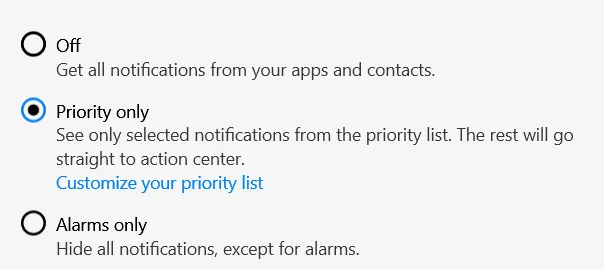
Off: When this option is selected, focus assist will disable all incoming notifications. The notifications will only be seen when you open the respective apps. This setting is usually applied when you need zero disturbance.
Priority Only: When this option is selected, all notifications would be silenced except for apps that are added to the priority list. You can set up your priority list and decide which apps should be allowed to produce notifications. To set up your priority list, click Customize your priority list.

The priority list contains important items like allowing notifications from calls and text messages. Messaging apps may be allowed here as they probably carry time-sensitive notifications. Apps too can be added to the priority list.
Alarms only: When this option is selected, all notifications will remain silenced, but alarms from various apps will be allowed.
Automatic rules: It is also possible to set up focus assist to work in specific times of the day or during specific activities. For example, you might want to put off notification during sleep hours or when you are playing a computer game. This is possible under automatic rules option as you can see below:

The last item on the focus assist settings page is very important. While focus assist can silence notifications, it does keep record of each and everyone of them. So you after your busy period, you may want to check out any notifications that were silence by Focus assist. Click the box at the bottom of the page to see a summary of the notifications recorded by focus assist. Check image below:

Conclusion
Ours is a world full of electronic distractions. The endless beeps of incoming notifications might affect your productive if you keep on checking all of them. Focus assist has helped a lot of windows 10 users to concentrate on their work and get it down - while checking notifications later. That is the essence of focus assist and it might be useful to you.
Note: Pixabay is the source of the thumbnail. Other Images are mine
Related