
In this release, we introduced AutoSign, RC management, and support for configurable transaction expiration.
AutoSign
We believe this is a very useful feature if you have more than one key imported in Clive. AutoSign feature automatically selects the appropriate keys and signs the transaction for you — no manual key selection is required. Clive uses a transaction-signing algorithm implemented in Wax. It follows the same logic as the signing algorithm used in the CLI wallet. This feature is available in both the CLI (Command Line Interface) and the TUI (Text-based User Interface).
AutoSign in TUI
On the transaction summary screen, the default value for Sign with key is Autosign. When selected, the signing algorithm automatically signs the transaction using your imported keys. Manual key selection is still available if needed.

AutoSign in CLI
Before AutoSign was implemented, if you had more than one key imported in your profile, you had to use the --sign-with option to specify the correct key manually.
Now, the AutoSign algorithm works by default, making it easier.
Example:
Command:
clive process transfer --to bob --amount "10 HIVE" --memo "test"

If you want to broadcast a transaction from a file (unsigned or partially signed), the AutoSign algorithm automatically adds the required signature, allowing the transaction to be broadcast easily.

To align with the new implementation, we have changed the default behavior of the --already-signed-mode option. It is now set to multisign by default.
Recourse Credit (RC) delegation in CLI
RC (Resource Credits) delegation lets users delegate Resource Credits to other Hive accounts. This allows accounts with little or no Hive Power to perform blockchain operations.
The RC-delegation is the custom JSON operation and requires the posting authority.
In one of the earlier releases, we introduced HP delegation, which delegates Hive Power (vesting shares). The delegatee receives both voting power and Resource Credits. This operation requires the active key.
In this release, we added a new group of commands under:
clive process rc-delegation
To maintain consistency, we renamed the previous delegation command to hp-delegation.
Using rc-delegation commands, you can:
- set - delegate a specified amount of RC to another account
- remove - revoke an existing RC delegation
- show resource-credits - view RC balance, mana, and outgoing delegations.
Example - set rc-delegation
Alice delegates 250 HP to bob.
Command:
clive process rc-delegations set --delegatee bob --amount "250 HP"

Example - show resource credits
Command:
clive show resource-credits

Example - remove rc-delegation
Alice removes rc-delegation.
Command:
clive process rc-delegations remove --delegatee bob

Transaction Expiration
On the Hive blockchain, every transaction has an expiration time. If it's not confirmed by the network before that time, it is rejected and never executed. The new feature allows you to modify this limit (30 minutes by default). For example, you can set a shorter time for better security, or a longer one if the transaction needs to be signed offline and broadcast later.
You can change the global setting expiration time using either the TUI or the CLI. Additionally, you can override an expiration time only for the single transaction. The expiration is computed as an offset from the current head block time and is updated whenever the transaction metadata is refreshed (e.g., when opening the Transaction Summary screen in the TUI or refreshing metadata manually).
This is a new profile setting, so it requires a storage migration. The migration is performed automatically when a new version is used and doesn't require any additional steps from the user.
Transaction Expiration in TUI
You can change the global setting by navigating to Settings -> Transaction expiration.
The expiration time can be specified in s [seconds], m [minutes] or h [hours] or 1d [day] (max is 1d (24h)).
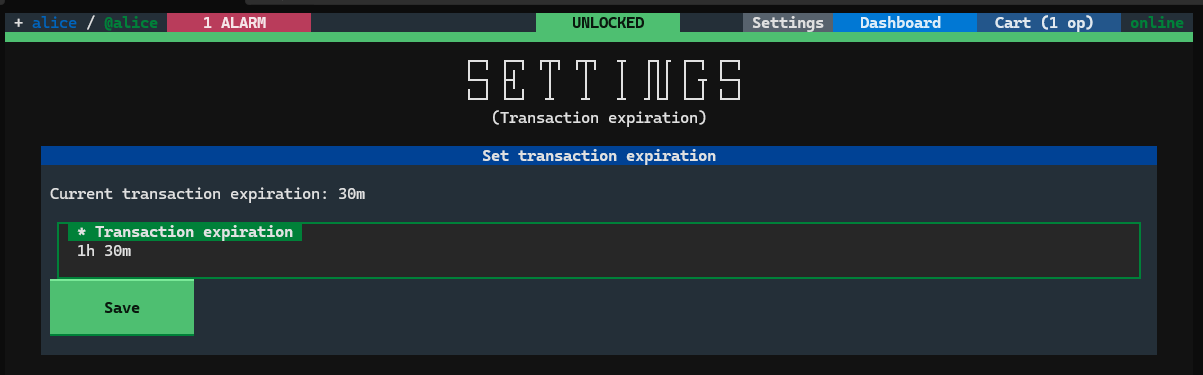
When you are on the Transaction Summary view, you can set the expiration time for the current transaction by pressing the Modify this transaction expiration button. This feature is available only in TUI.

After selecting it, the dialog window appears, allowing you to set either a relative or absolute time for this transaction.
Changing the expiration time of a signed transaction invalidates its signatures (a warning dialog will be displayed).

Transaction Expiration in CLI
You can check the global expiration time using a command:
clive show profile

You can change the transaction expiration time using a command:
clive configure transaction-expiration set
Example:
clive configure transaction-expiration set "20m"

To restore the default setting (30 minutes):
clive configure transaction-expiration reset
Complete list of corrected issues
The scripts that allow you to run Clive are here:
https://gtg.openhive.network/get/clive/