
Repository
What Will I Learn?
- Configuration in mailtrap.io
- Send verification email
Requirements
- Basic Python
- Install Python 3
- Install Django
Resources
- Python - https://www.python.org/
- Django- https://www.djangoproject.com/
- Bootstrap 4 - https://getbootstrap.com/docs/4.0/getting-started/introduction/
- Mailtrap.io https://mailtrap.io
Difficulty
Basic
Tutorial Content
This tutorial is a continuation of the previous tutorial about verifying users with email. Because we use email verification. Of course, we need some configuration because we run the application through our local server. In this tutorial we will learn how to implement our e-mail with the help of new tools, that is mailtrap.io. With this tool, we can send emails from our local server. For those of you who are just following this tutorial, I suggest you follow the previous tutorials.
Use mailtrap.io
We will use an additional tool in the Django application that we created. this tool is mailtrap.io. the use of these tools to help us for development needs when sending emails. Of course, we need a test or check before we send the email feature in the production or real project stage. So mailtrap.io is very useful for those of you who want to test or see emails that are sent during the development process. to start using it we can create an account first.
- Start using mailtrap.io
The first thing we will do is create an account that we will use to be able to access the dashboard in mailtrap.io. to create an account in mailtrap.io you can use your GitHub account or your Gmail account, as I did in the picture below:

mailtrap.io is a paid tool but for the sake of simple testing send an email to mailtrap.io that has provided it for free. After we register and log in we will be given access to the dashboard page and on the dashboard, we have an inbox, now the inbox provided for free is a demo inbox.
- Configuration in mailtrap.io
We can click to enter the demo inbox, now here is an important part of its use, for more details we can see in the picture that I present below:

There are several configurations that are offered by mailtrap.io, what we will use is the Python language with the Django framework, so we can select the configuration. for more details, we can see in the following picture.

As we saw in the picture above to configure it in mailtrap.io we have to add the following code in apps/settings.py
EMAIL_HOST = 'smtp.mailtrap.io'
EMAIL_HOST_USER = '9650522bb15611'
EMAIL_HOST_PASSWORD = '9dfe19de3b6fc4'
EMAIL_PORT = '2525'

Well, now we have finished configuring in mailtrap.io the next step is to create an email activation in the application that we made.
Send email activation
In this section we will continue to create activation emails that we have made in the previous tutorial, In the previous tutorial, we have defined our email template, namely activation_email.html. Well, in this section we will make the template, here is the template that we will create:
- Create an email template
We will start creating email templates, in this template I have passed a number of variables to render in the template, we can see in the code below to see what variables I passed in this template:

to use the
render_to_string ()function we must import it first like thisfrom django.template.loader import render_to_string.to use the
force_bytes ()function we can import it first like the followingfrom django.utils.encoding import force_bytes
and the following is a template that we will render in an email:
activation_email.html
{% autoescape off %}
    Hi, {{user.username}}
    Please click the link below, to activate your account
    http://{{domain}}{% url 'activate' uidb64=uid token=token %}
{% endautoescape %}
Well in this template I will render a link for activation http://{{domain}}{% url 'activate' uidb64=uid token=token %}, the link consists of domains, uids and tokens that have been generated. We haven't created the route yet. we will make it in the next section.
- Make routing for link activation
We have passed a link in the activation email now we will create the link. I will create a new routing and accept some parameters, namely uid and token. For more details, we can in the code below:
account/urls.py
from django.urls import path
from . import views

urlpatterns = [
    path('signup/', views.SignUp, name='signup'),
    path('password_change/', views.ChangePassword, name='change-password'),
    path('activate//', views.Activate, name='activate')  // path for activation
]
we have created a new path that is
path('activate/<uidb64>/<token>', views.Activate, name='activate'). In this routing I will accept the<uidb64>and<token>and define the Activate function in the view classviews.Activateand also give an aliasname='activate'as we have rendered it in template.And next I will make the Activate function in the view class, this function will only return so that no error occurs.
def Activate(request):
    return
If all the steps above have been completed we can do an experiment like the demonstration that I have made below:
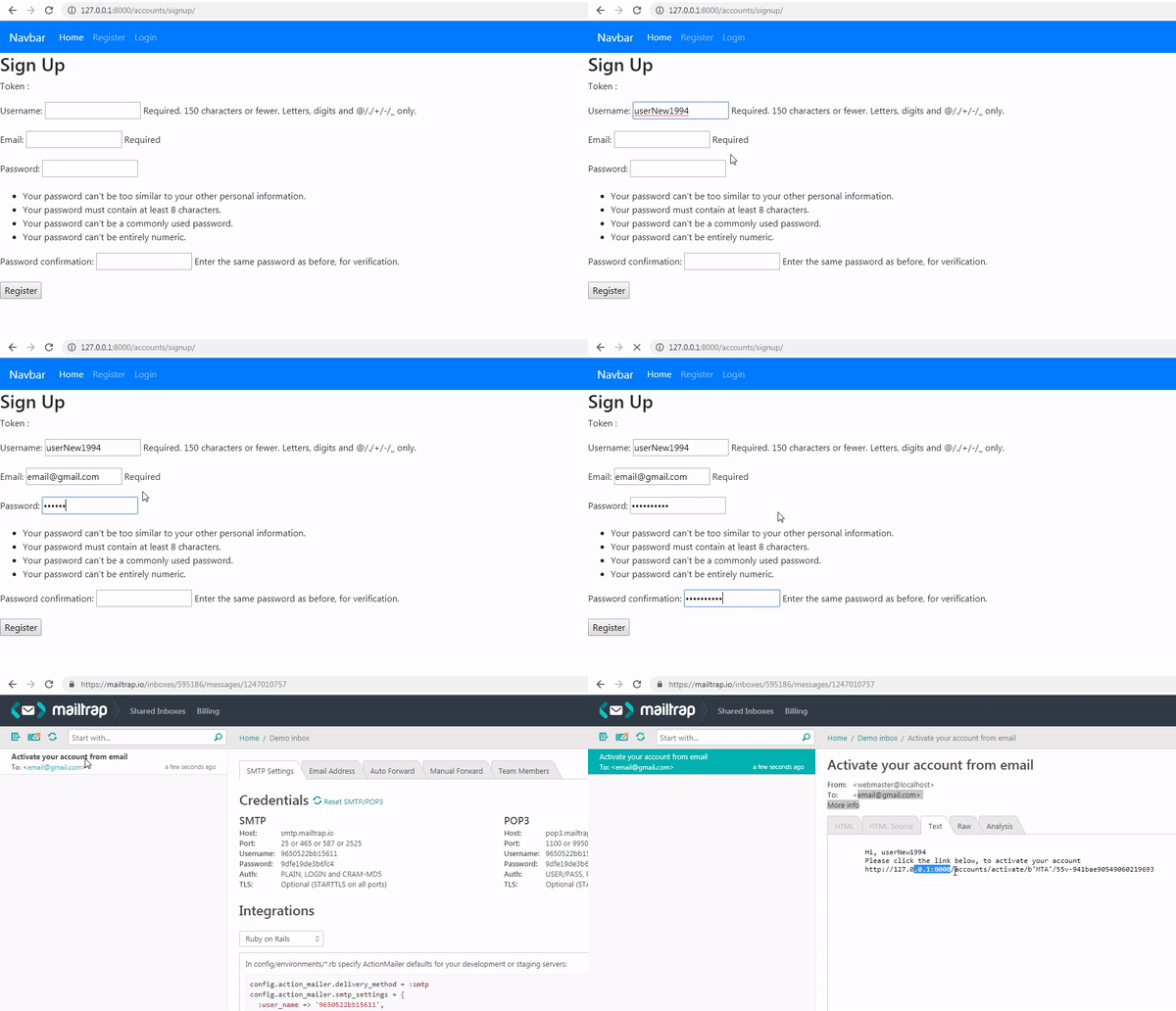

We can see in the picture above we have successfully sent an email by sending a verification link to the email we sent. this means our assignment has been completed in this tutorial. In the next tutorial, we will activate the user via the clicked link.
Curriculum
- Forum app
django#1, django#2, django#3, django#4, django#5, django#6, django#7, django#8, django#8, django#9, django#10, django#11