

Hi all,
On this day I am back to share tutorial using GIMP software, In this post I will share tutorial to make "Photographic Text" using GIMP software. If you do not know the example of how to form Photographic Text, you can see the example thumbnail above.
In making "Photographic Text" is not too difficult. we just need to do 3 important step like example picture below. The first thing to prepare a sample of photos, then added Gradient with reduced opacity, and finally make the form of writing.

Before starting the editing process, the new thing you have to prepare is GIMP software. If you do not have GIMP software yet, please click the download link below:
Download GIMP: https://www.gimp.org/downloads/
Next prepare a sample photo you want to make a "Photographic Text", if you want to use a sample photo like me, please download below:
Download Photo Sample: https://pixabay.com/en/surfer-wave-sunset-the-indian-ocean-2212948/
If you have prepared both of the above, please follow the steps below to start the editing process.
First of all, please open your GIMP software. And enter the photo you want to edit. How to click File > Open> Search and select the photo you want to edit.
Next, create a New Layer. How to click Menu Layer > New Layer > And in the Layer Fill Type select "Tranparency" > Last click OK.
Next add the Gradient On the new layer. How to click "Blend Tool"> Set Foreground and Background Color as below.
Set the Gradient type to "FG To BG (RGB)", and set Shape to "Linear". Next pull the Blend Tool as shown below.
Next, subtract the Opacity around "75".
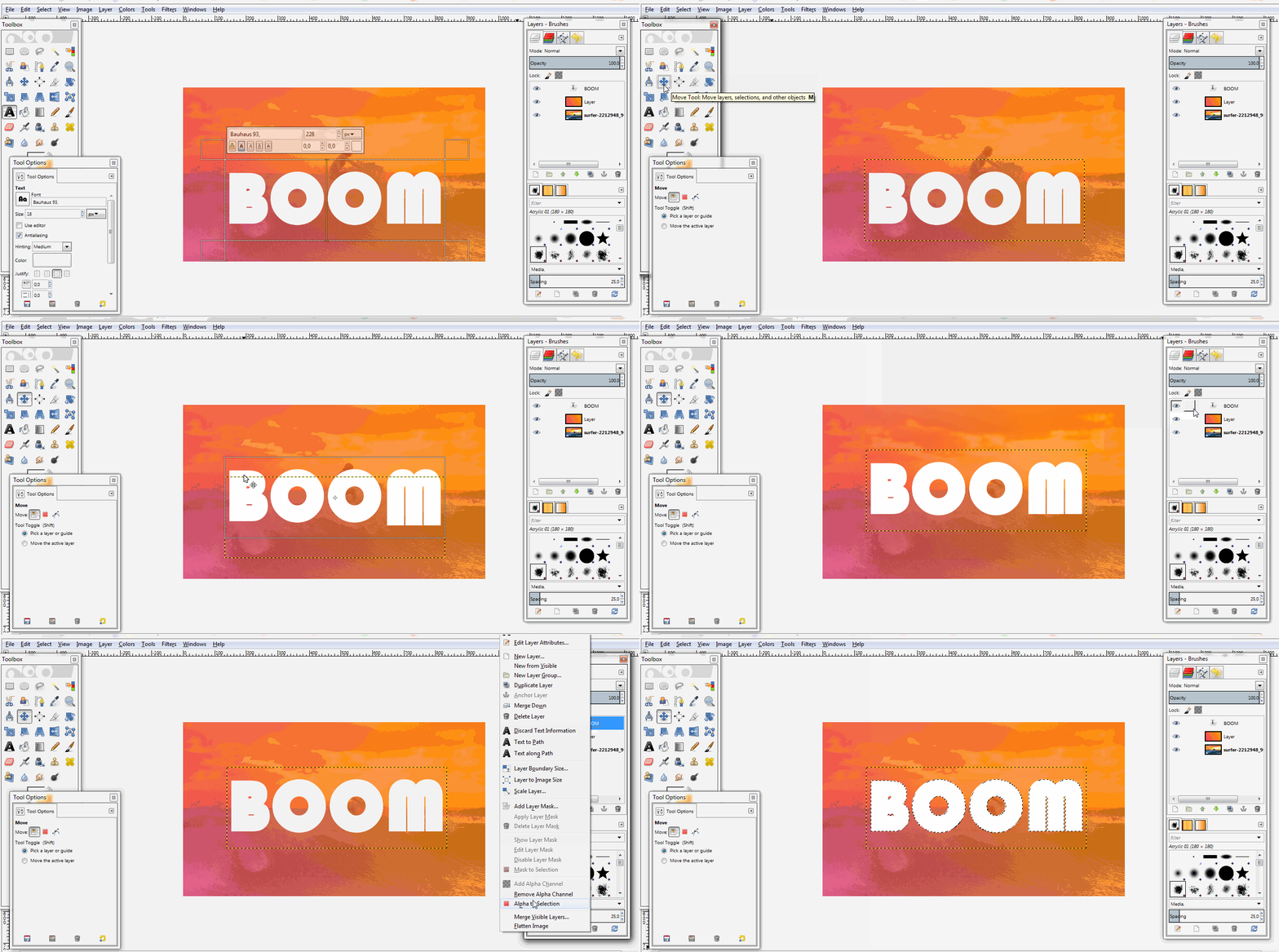
Add Text by using "Text Tool". set the font color to "White", and set the font type to your liking. Below I use Font "Bauhaus 93" With Font Size "228 px".
Next Set the location of the text using "Move Tool". Then select the selection by right click on the text layer > And select "Alpha To Selection".
Next hide the Text Layer, and click on the previous Gradient Layer. Last Press the "Delete" button on your Pc / Laptop. To eliminate the selection, please press CTRL + T
The process of editing Create a Photographic Text With GIMP has finished. To save it in JPEG, PNG or other format, please click File> Export As / Export> Give Name, set format, set storage> last click Export.




May be useful

Posted on Utopian.io - Rewarding Open Source Contributors