
How to make your photo more lighter using GIMP 2.8
Today i make a tutorial how to make your photo more lighter using GIMP 2.8
just follow the step in this tutorial
- Go to Open files and choose the photo you want to edit


This is my photo i want to edit.
Then Duplicate the photo in 3
Then click colors.
Click Desaturate
After you click Desaturate choose or click Luminosity
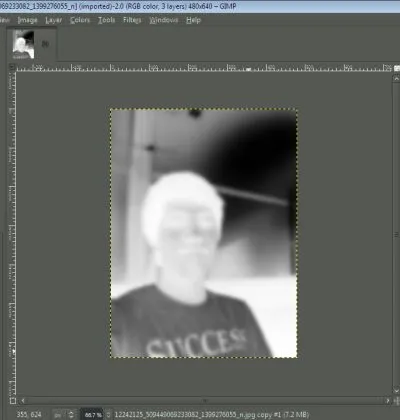
Then the picture become Black and White.
After that click again colors and click invert.
After you click invert this will be happen
Then Click Filters, Click blur and choose Gaussian blur
Then change the horizontal and vertical into 15 or 20 depend on your photo size.


Then go to the layers of your picture and click the opacity and make it 20.0
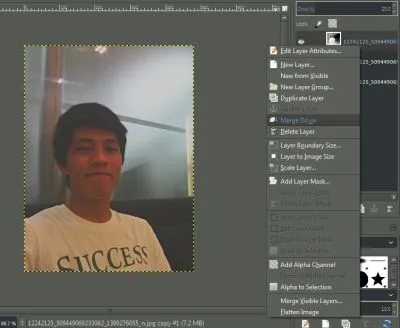
After you change the opacity right click the picture and then click merge

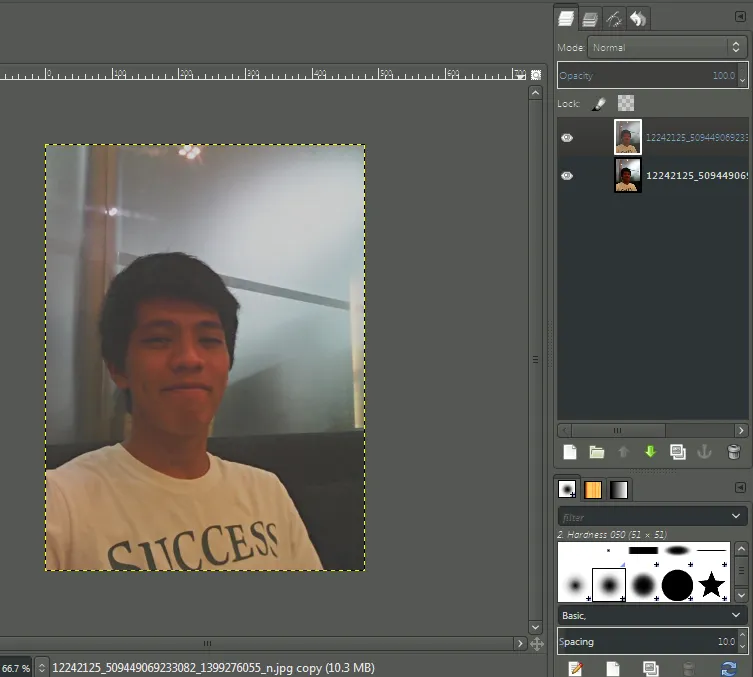
Then go to the top of opacity and you see the word normal and then click that
Then after you click that choose or click "Divide"
And this is the result of my photo that i edit before the picture and after the picture more light.


This is the result of the step what we do in GIMP 2.8 Hope that this tutorial help you a lot.

Posted on Utopian.io - Rewarding Open Source Contributors