
StackEdit is a full featured online markdown editor based on PageDown. It uses the same markdown formats used in Stack Exchange communities. This is a tutorial about how to use this tool to write articles in markdown format.
First, visit the home page of StackEdit. Click on the "Start writing now!" button highlighted in the screenshot.

Clicking on the button will take you to the editor. The first time you open the editor, it will look something like this:
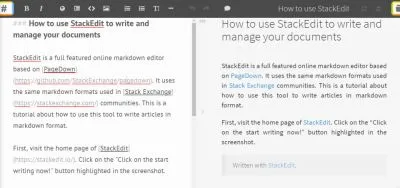
The input form in the left is where authors write articles and in the right, StackEdit previews it. The default text in the editor gives users instructions about how to use the tool. Delete the default text to get started.

Now that you have a blank page, you can start with writing the title of your article. Write your title and put a # with space at the start of the title.

The # formats the text in h1 header format. Make sure to add a space between the hash and the first letter of the title.
Press enter to get a good space between the article body and the title. Now its time to write the body of the article.
Now I will show how to use the StackEdit toolbar to format the article body. After writing some text, you might want to format them in bold. Select the text and press the "B" button to format in bold.

The "I" button is to format text in italic.

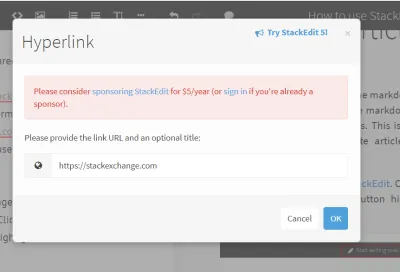
The button with a globe icon is for inserting links. Select some text and click on the globe icon. Then insert the link in the popup form.
Steps to adding links shown in the screenshots. Step 1:

Step 2:
Use the button highlighted in the screenshot below to quote text from other sources.

Example quoted text

Use the image icon button to add images (shown in the above screenshot). The three buttons highlighted in the below screenshot are for code, numbered list and bulleted list respectively.

The button with a big T is for adding headings. Select text and then click on it to format text in heading format.

The button right of the T button is for adding horizontal rule. An example rule is shown below:
After writing the article, copy the whole text you entered and paste it in where you want to publish the article. In my case, Utopian.io. This whole article was written using StackEdit.
Open Source Contribution posted via Utopian.io