
Open Note Scanner is an android app that can scan notes.
Let's start the step by step tutorial on how to use this application.
Go to the Google play store and search Open Note Scanner
To install the application click on the Install button and the app will start downloading.
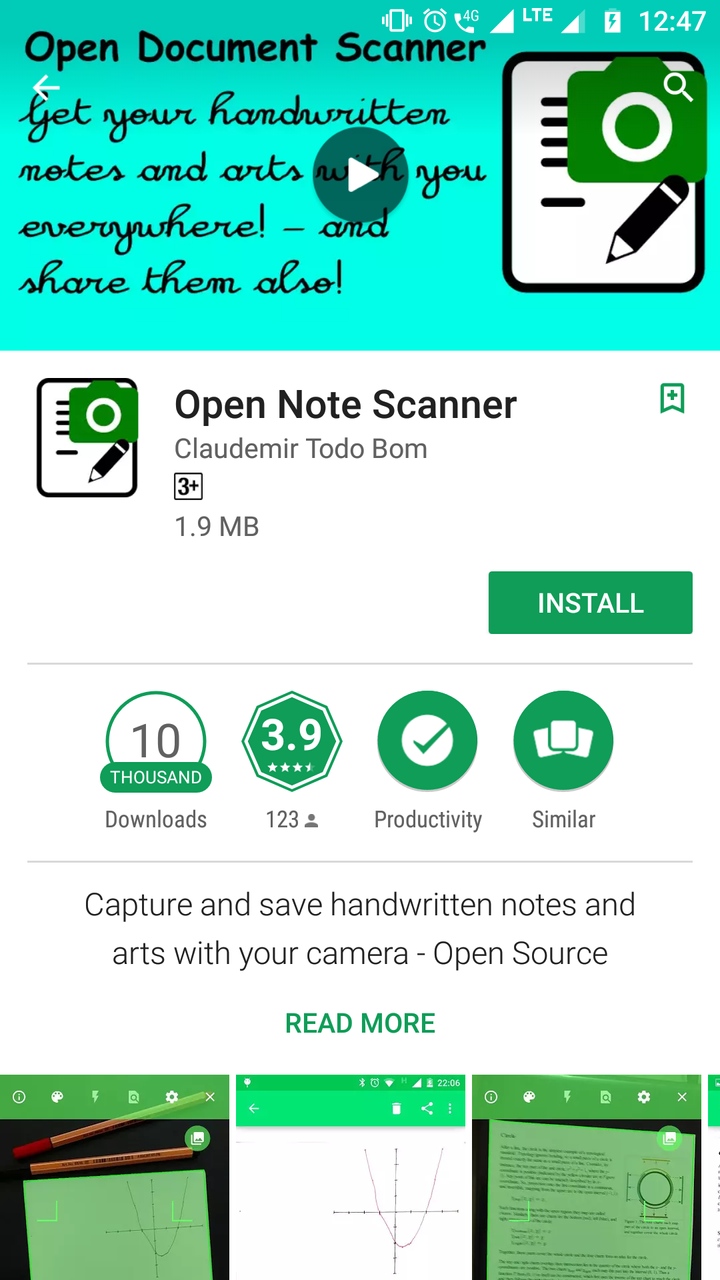
Now to get access to the app click on the Open button and proceed.

The app will ask for some permissions. Click on the Accept button and proceed.

Here you will be asked to download Install OpenCV Manager. Download the app through Google play by clicking on Google Play. You can also download the app directly by clicking on the Direct Download button.

Now install the app by clicking on the Install button.

After the app is installed go back to Open Note Scanner.

Put your notes in front of your phone and click on the Camera button to scan notes.

You will be asked to tap again in order to scan whole image.
Click on the camera button again and the image will be captured.

To get access to the saved notes click on the pictures logo.

Click on the three dots located at the top right corner of the screen to get access to more options.

You can go to the settings for some basic options like storage by clicking on the settings button as shown in the above screenshot.

To know more about Open Note Scanner click on the button shown in above screenshot.

If you want to share the app click on the Share This App option.

Select the format you wish to share this app on.

The tutorial is complete. You can now use Open Note Scanner with ease.
Thanks :)
Posted on Utopian.io - Rewarding Open Source Contributors