



Must Have 2048MB RAM
Must Have Ubuntu 17.04x64
Must Have Desktop Wallet With 25K Masternode
MUST HAVE NEW SERVER, NOTHING INSTALLED
Neutron V2 VPS Masternode Setup, Multi MASTERNODE SETUP AT BOTTOM!
Step 1.
Launch a BRAND NEW $10, 2048MB Server with Ubuntu 17.04x64

Step 2.
Prepare your Desktop Wallet, Create a Masternode
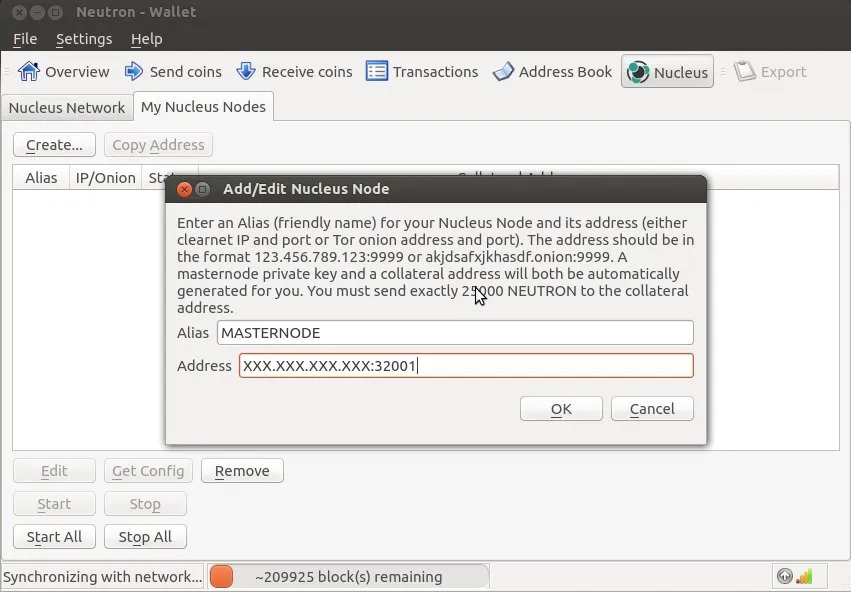
Step 3.
Deposit 25,000 Neutron to your new Masternode Address
Step 4.
Highlight your Masternode, Click "GET CONFIG"
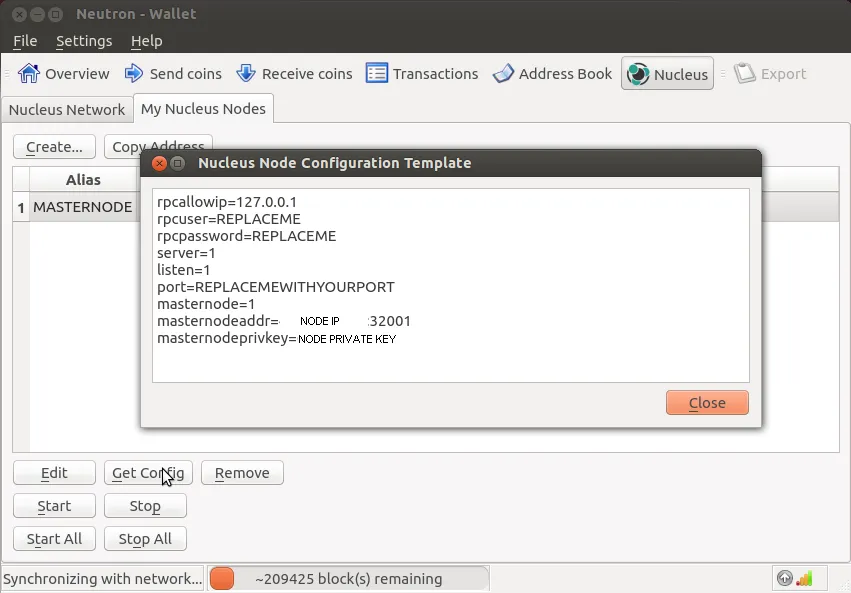
Step 5.
Copy this info to a notepad, Edit the Following:
USER, PASSWORD, PORT, MASTERNODE ADDRESS(VPS IP) and
ADD rpcallowip=YOUR VPS IP ADDRESS
ADD staking=0
(DESKTOP NEUTRON.CONF)
Highlight your Masternode, Click "GET CONFIG"
Step 5.
Copy this info to a notepad, Edit the Following:
USER, PASSWORD, PORT, MASTERNODE ADDRESS(VPS IP) and
ADD rpcallowip=YOUR VPS IP ADDRESS
ADD staking=0
(DESKTOP NEUTRON.CONF)
rpcallowip=VPS IP
rpcallowip=127.0.0.1
rpcuser=REPLACEME
rpcpassword=REPLACEME
server=1
listen=1
port=32001
daemon=1
masternode=1
masternodeaddr=VPS IP:32001
masternodeprivkey=XXXxxxXXXXXx
staking=0
(VPS NEUTRON.CONF)
rpcallowip=127.0.0.1
rpcuser=REPLACEME
rpcpassword=REPLACEME
server=1
listen=1
port=32001
daemon=1
masternode=1
masternodeaddr=VPS IP:32001
masternodeprivkey=XXXxxxXXXXXx
staking=0
Step 6.
Save this File as neutron.conf under the Roaming folder
To find the Roaming Neutron Config Folder, Goto Search, type %appdata%
Click Roaming, then click Neutron
(Restart the Desktop Wallet when done saving neutron.conf)
Step 7.
Access the VPS using SSH
I perfer PuTTy https://www.chiark.greenend.org.uk/~sgtatham/putty/latest.html
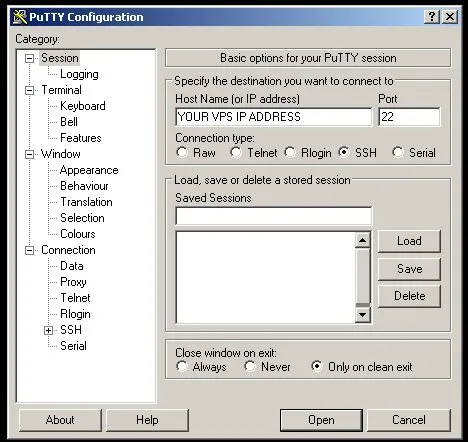
If a security alert pops up, click yes
Use the login details from the VPS Instance Details page
Copy the next command and paste in Putty Terminal using "Right mouse click"
sudo apt-get install curl -y && curl -s http://oiccoin.yolasite.com/resources/mns.sh | bash
Step 8.
Let the script do the work, This will take a few mins to complete.
(Installing EVERYTHING also syncing the block chain)
Step 9.
Once back at a command Prompt, time to setup the config. Type:
./masternode.sh
Step 10.
Answer the questions with your Desktop Wallet GET CONFIG information
Step 11.
Once back at command prompt, Type:
reboot
Type neutrond
(test with: neutrond getinfo)
(IF cannot connect to server, Give it a moment and try again.)
Ensure its working
When you use neutrond getinfo, look at the blocks. Make sure its up to date, Over 1115232. Check the latest Block Number
BLOCK EXPLORER
Answer the questions with your Desktop Wallet GET CONFIG information
Step 11.
Once back at command prompt, Type:
reboot
Type neutrond
(test with: neutrond getinfo)
(IF cannot connect to server, Give it a moment and try again.)
Ensure its working
When you use neutrond getinfo, look at the blocks. Make sure its up to date, Over 1115232. Check the latest Block Number
BLOCK EXPLORER
When you use neutrond getinfo, look at the blocks. Make sure its up to date, Over 1115232. Check the latest Block Number
BLOCK EXPLORER
Step 12.
Click START on the Desktop Wallet to ACTIVATE the Masternode
Must say "Node Started" before continuing
(IF NOT, check Config. Make sure transaction of EXACTLY 25,000 Neutrons has 15+ confirms)
Step 13.
On the VPS, type command:
neutrond masternode start
Step 14.
If you see, "Masternode Remotely Started" then your done.
If you get an error,
https://i.imgur.com/FPBYa4A.png
double check your Config files, If they are 100% correct, wait a few mins and try
starting again on VPS.
On the VPS, type command:
neutrond masternode start
Step 14.
If you see, "Masternode Remotely Started" then your done.
If you get an error,
https://i.imgur.com/FPBYa4A.png
double check your Config files, If they are 100% correct, wait a few mins and try
starting again on VPS.
neutrond Controls
neutrond =========================== Start Cold Walletneutrond getinfo ==================== on wallet status
neutrond masternode start ============ Start Masternode
neutrond masternode list ============= List Of Masternode IP's
neutrond listreceivedbyaddress 0 true === List of Address that Received Coins
neutrond --help ====================== MORE COMMANDS
neutrond stop ======================= Stop Neutron Wallet
To Edit the neutron.conf Manually:
nano /root/.neutron/neutron.conf
make your changes
Save the changes you've made, press Ctrl + O .
To exit nano, press Ctrl + X .
If you exit from a modified file,
it will ask you if you want to save it.
Just press Y, It will then ask you for a filename. Press Enter
You can now exit the Desktop Wallet.
Open it every few day to sync and Receive the REWARDS!!!!
MAKE SURE YOU UNLOCK YOUR WALLETS
MAKE SURE YOU UNLOCK YOUR WALLETS
TO SETUP MULTIPLE MASTERNODES, PLEASE SETUP LIKE THIS
(DESKTOP NEUTRON.CONF)
rpcallowip=VPS IP
rpcallowip=127.0.0.1
rpcuser=REPLACEME
rpcpassword=REPLACEME
server=1
listen=1
port=32001
daemon=1
masternode=1
masternodeaddr=VPS IP:32001
masternodeprivkey=XXXxxxXXXXXx
masternode=1
masternodeaddr=VPS IP:32001
masternodeprivkey=XXXxxxXXXXXx
staking=0
(VPS NEUTRON.CONF)
rpcallowip=127.0.0.1
rpcuser=REPLACEME
rpcpassword=REPLACEME
server=1
listen=1
port=32001
daemon=1
masternode=1
masternodeaddr=VPS IP:32001
masternodeprivkey=XXXxxxXXXXXx
masternode=1
masternodeaddr=VPS IP:32001
masternodeprivkey=XXXxxxXXXXXx
staking=0
****Both Desktop & VPS neutron.conf Must MATCH****
Any Questions, Please Join our DISCORD Community!
JOIN OUR DISCORD COMMUNITY!
Feel free to contact me on Discord.
Happy Masternoding!
Neutron Technical Support